
SurFast Video Downloader Official Guide
Table of contents
Overview
SurFast Video Downloader is a desktop video download app for Windows and macOS. It lets you download videos, audio, subtitles, and thumbnails from over 1,000 websites, including YouTube, Instagram, TikTok, Facebook, X, SoundCloud, Twitch, and many more.
- Supported video formats: MP4, WebM, MOV, AVI, FLV, MKV, GIF
- Supported audio formats: MP3, WAV, M4A, FLAC, AAC, ALAC, OGG, OPUS
- Supported subtitle formats: SRT, VTT, LRC, ASS
The app supports resolutions ranging from 144p up to 8K (7680×4320), including 4K, 2K, 1080p, and 720p, depending on the source video.
You can download single videos, entire playlists or channels, extract audio, save subtitles in multiple ways, and use advanced features such as clipping, automatic tracking, and private content downloads.
Getting to Know the Interface
The main interface is clean and divided into several key areas.
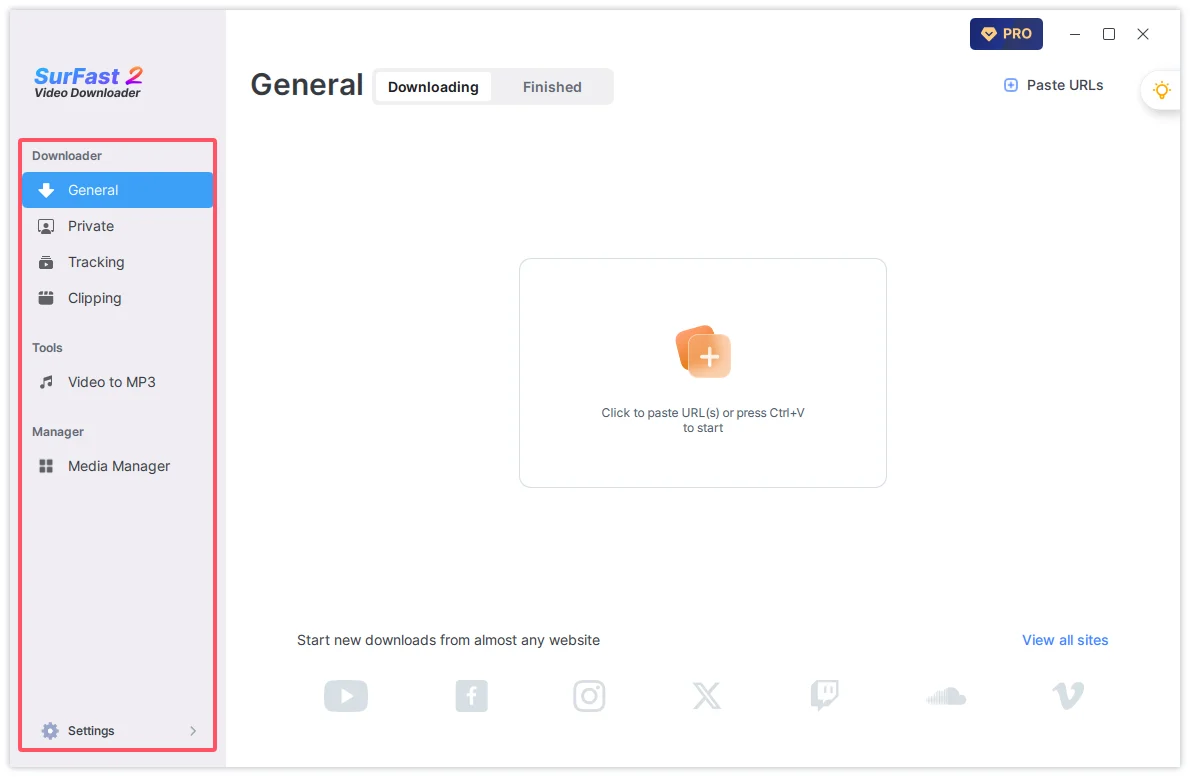
Left Sidebar
- General: The main download mode for everyday use. Paste public video or playlist links here to start downloading.
- Private: Includes a built-in browser. Use this panel when you need to log in to access private, unlisted, or members-only content.
- Tracking: Automatically download new videos from a playlist or channel, and schedule downloads for upcoming live streams.
- Clipping: Download a selected portion of a video or audio file. You can also download YouTube chapters as separate files.
- Video to MP3: Convert local video files on your computer into MP3 audio.
- Media Manager: Open the built-in media management tool to organize your downloaded files.
- Settings: Adjust general settings, download preferences, advanced options, and view software information.
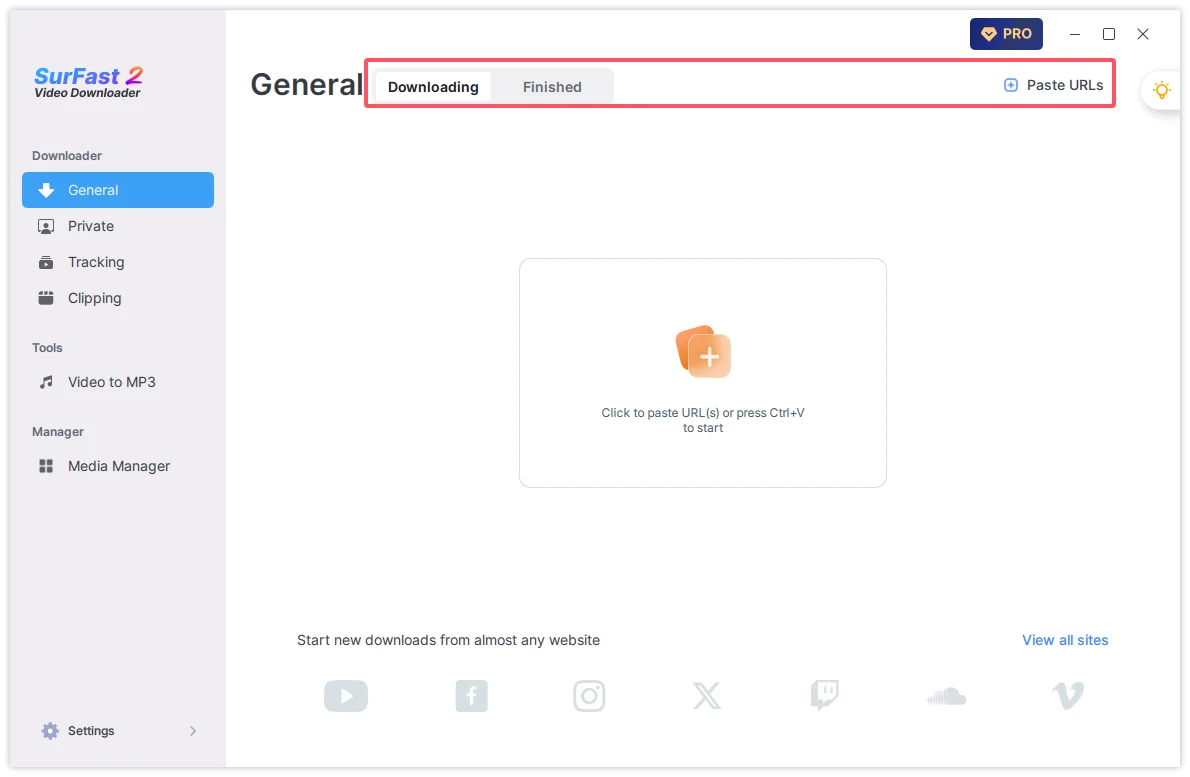
Top Tabs
- Downloading: Shows the progress of current download tasks.
- Finished: Displays the list of completed downloads.
- Paste URLs: Click this button or press Ctrl + V (Windows) / Cmd + V (Mac) to paste links.
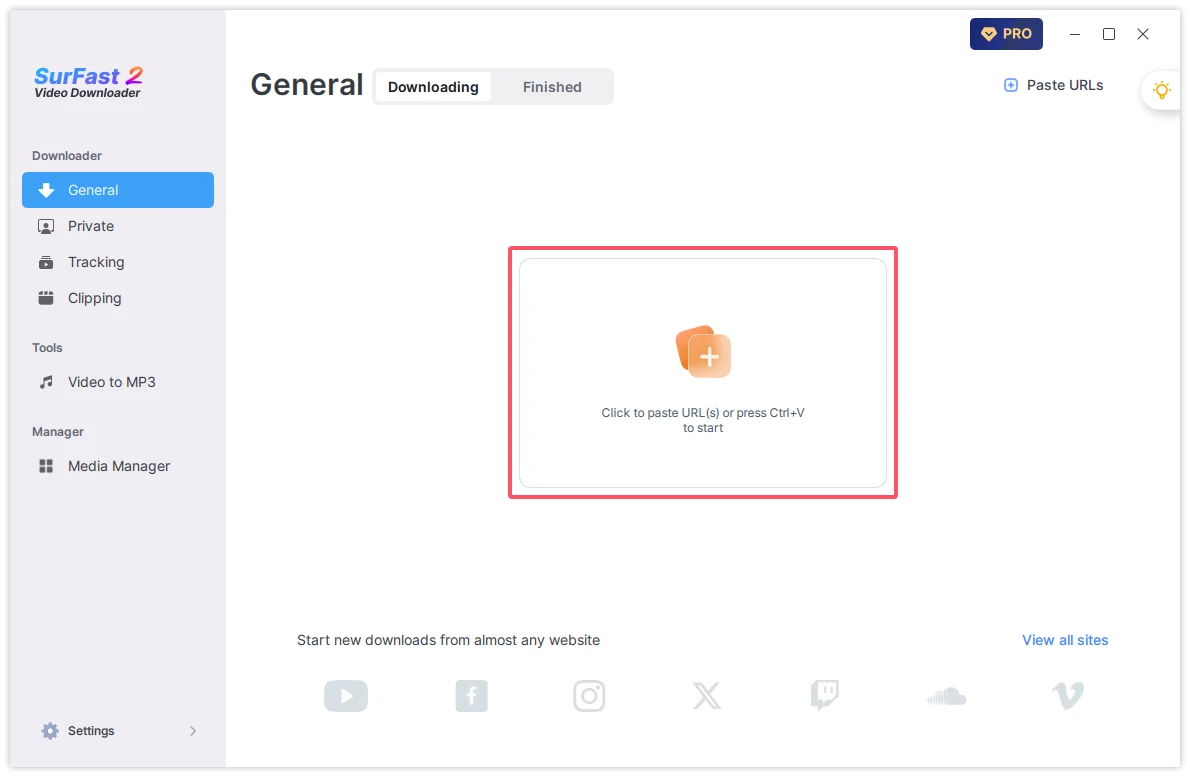
Center Area
This is where you paste links to start new downloads.
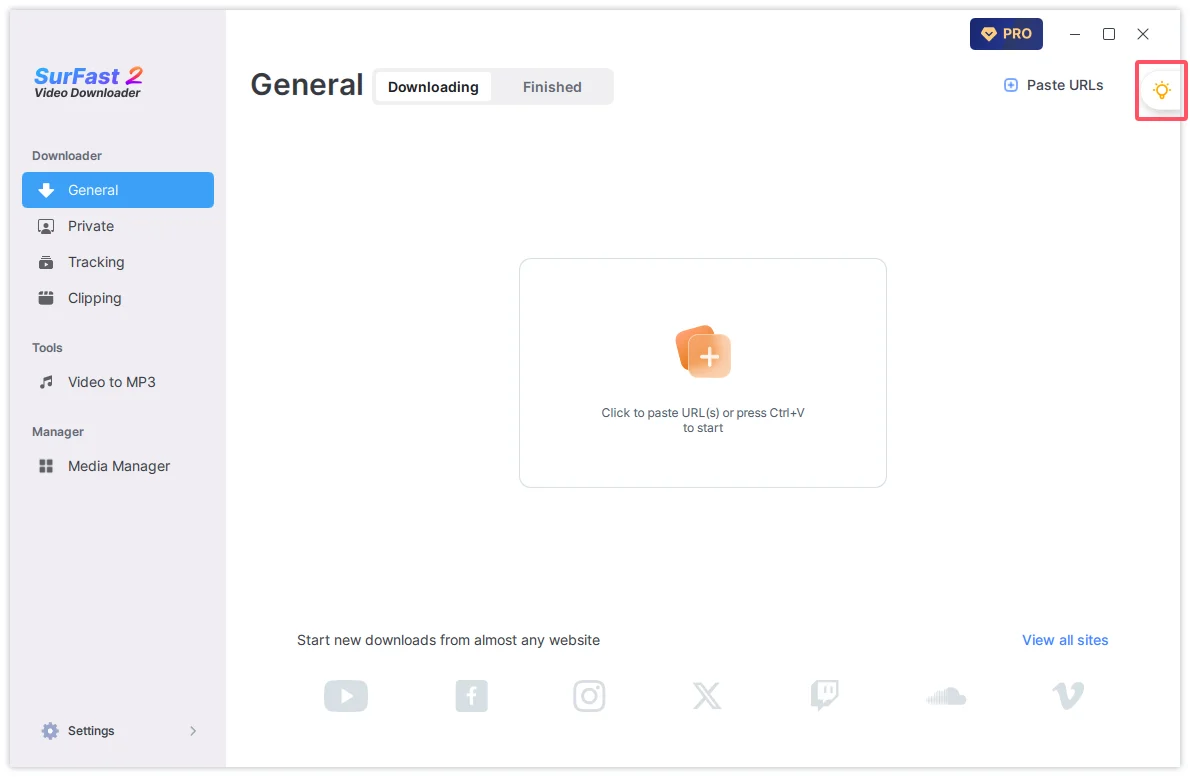
Top-Right Controls
Lightbulb icon: Opens Global Settings, where you can preset format, quality, and other preferences for faster downloads.
Supported Websites
SurFast Video Downloader supports a wide range of video platforms, social media sites, and cloud services. Popular supported sites include YouTube, TikTok, Instagram, Facebook, X, SoundCloud, Twitch, Vimeo, and many others.
You can view the complete list of supported websites on the official supported sites page.
How to Download Videos from Websites
You can use SurFast Video Downloader to download videos, including regular videos, past broadcasts, and live streams, for offline viewing. When downloading a live stream, you can stop the process at any time — the app will save the portion that has already been downloaded.
How to Download a Single Video
You can use either the General panel or the Private panel.
Using the General panel:
- Copy the video link and paste it into the app.
- Choose the download format, resolution, and output folder.
- Click Download.
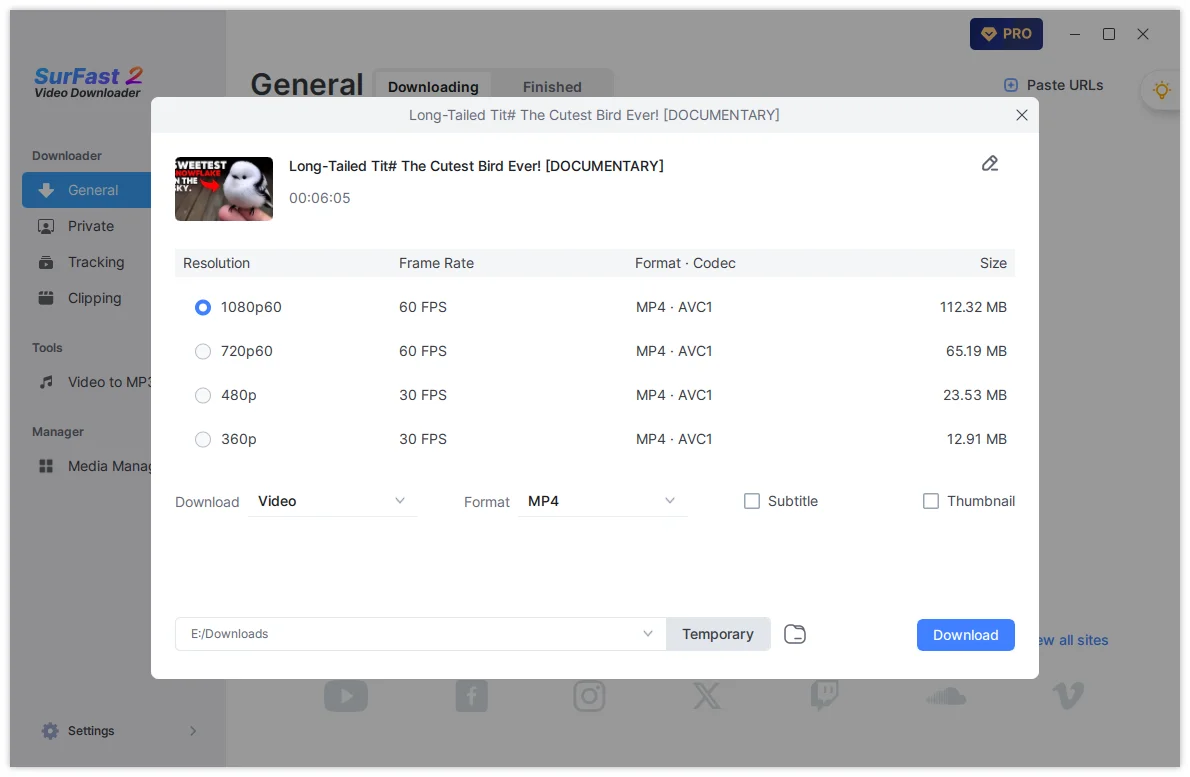
Using the Private panel:
- Go to the Private panel and open the target website.
- Sign in if required, then find and play the video.
- Click the Download button that appears on the interface.
- Set your preferred format and quality, then click Download again.
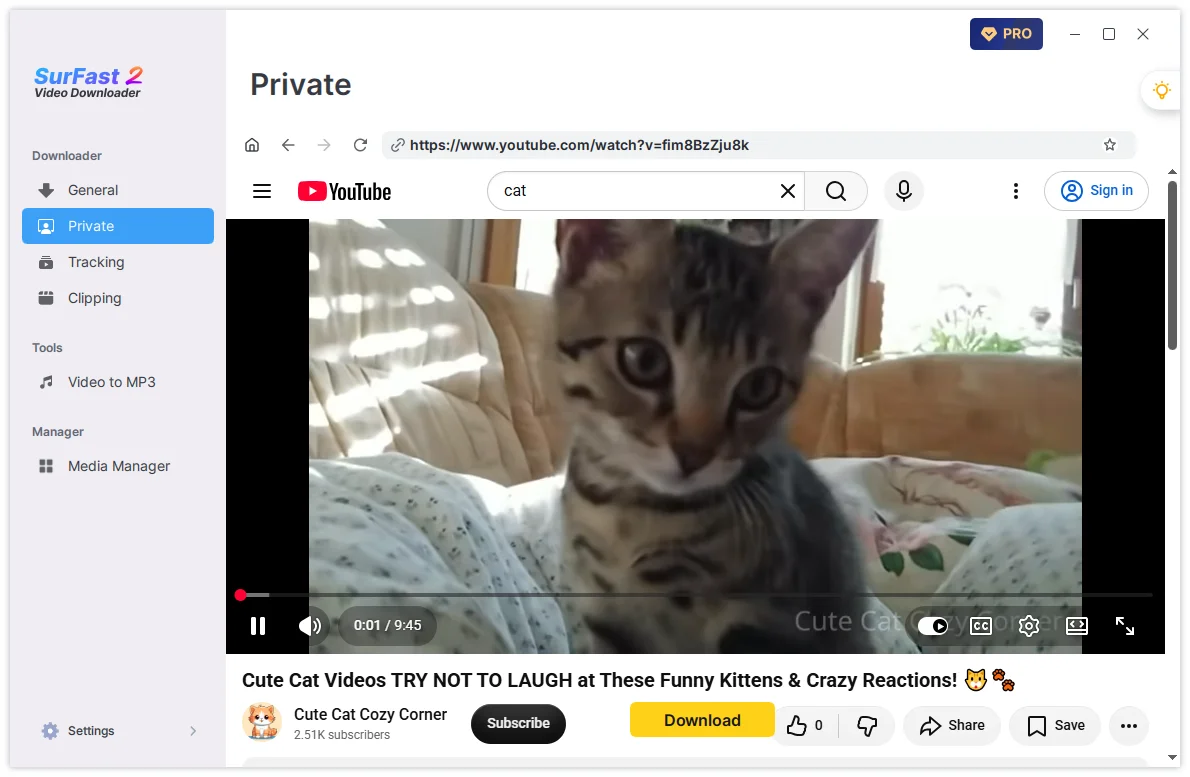
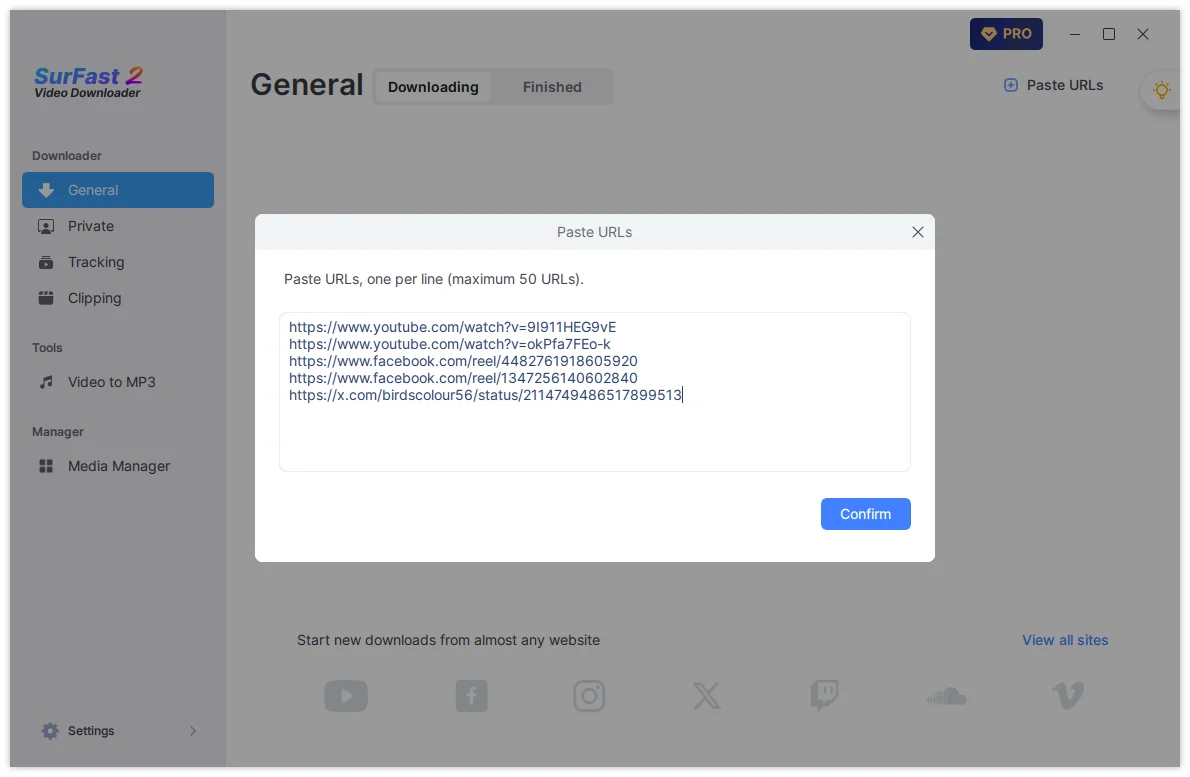
How to Download Multiple Videos at Once
If the videos are not part of a playlist, simply collect all the individual links and paste them into the app at the same time.
- Paste all the links into SurFast Video Downloader.
- Wait for the app to parse the links.
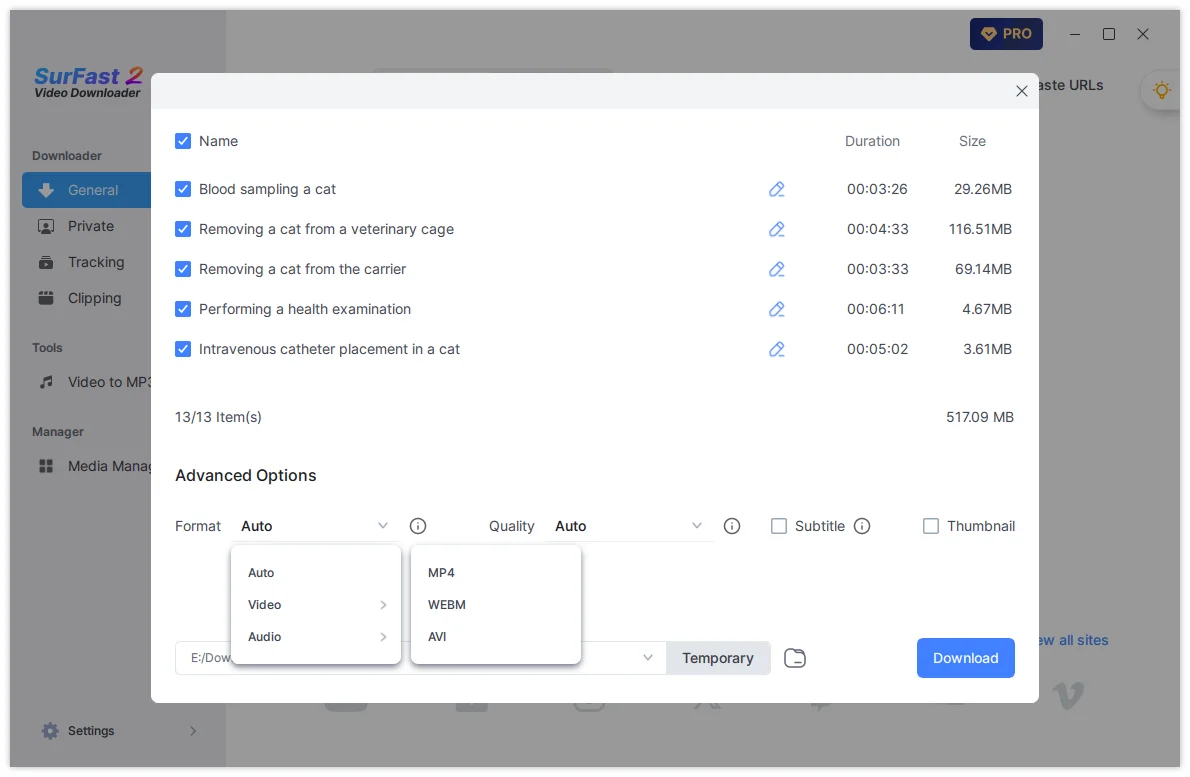
- Set the format, resolution, and output folder.
- Click Download to save all videos at once.
How to Download a Playlist or Channel
Using the General panel:
- Copy the playlist or channel URL and paste it into the app.
- Select the format, resolution, and output folder.
- Click Download.
Using the Private panel:
- Open the playlist or channel page inside the Private panel.
- Click the Download button that appears.
- Wait for the app to load all videos, then set your preferences and click Download.
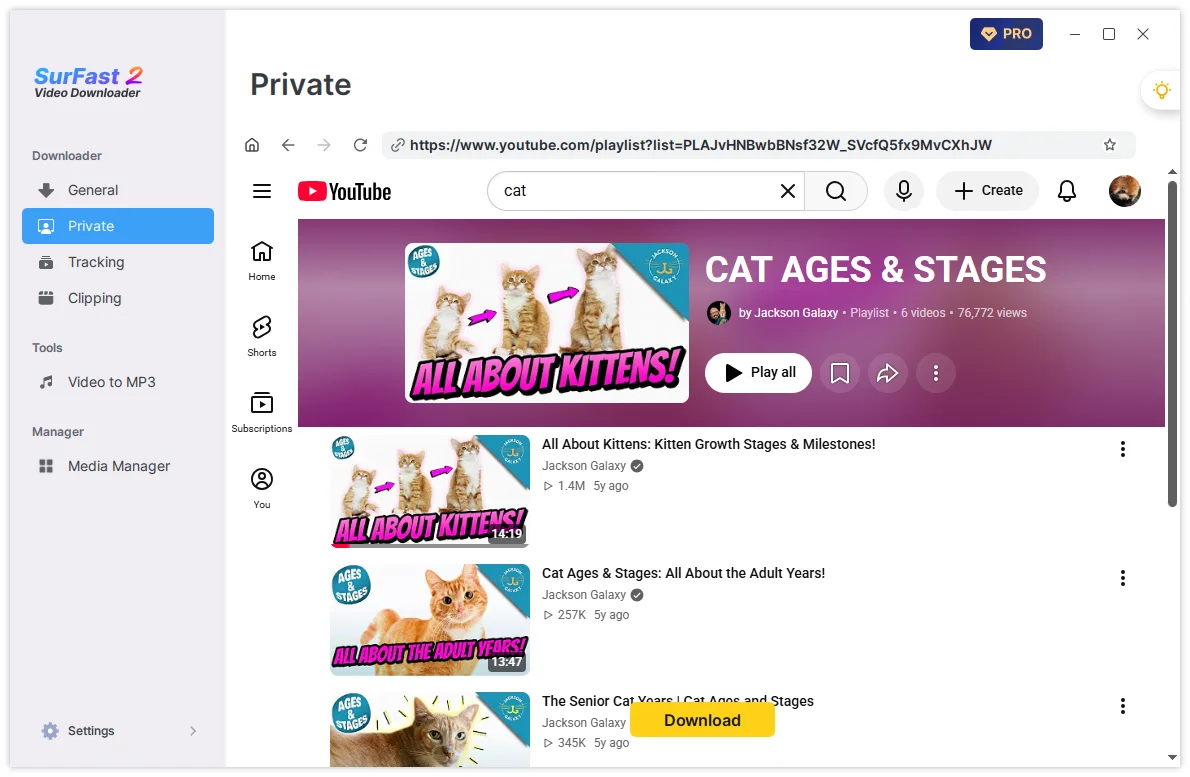
For a more detailed guide on downloading playlists, albums, and channels (including Global Settings and automatic tracking), see:
How to Download Playlists, Albums, and Channels with SurFast Video Downloader
How to Download Audio from Websites
You can download audio files directly or extract audio from videos.
Using the General panel:
- Paste the link into the app.
- Select Audio and choose your preferred format (MP3, M4A, WAV, FLAC, etc.).
- Adjust the bitrate and output folder if needed, then click Download.
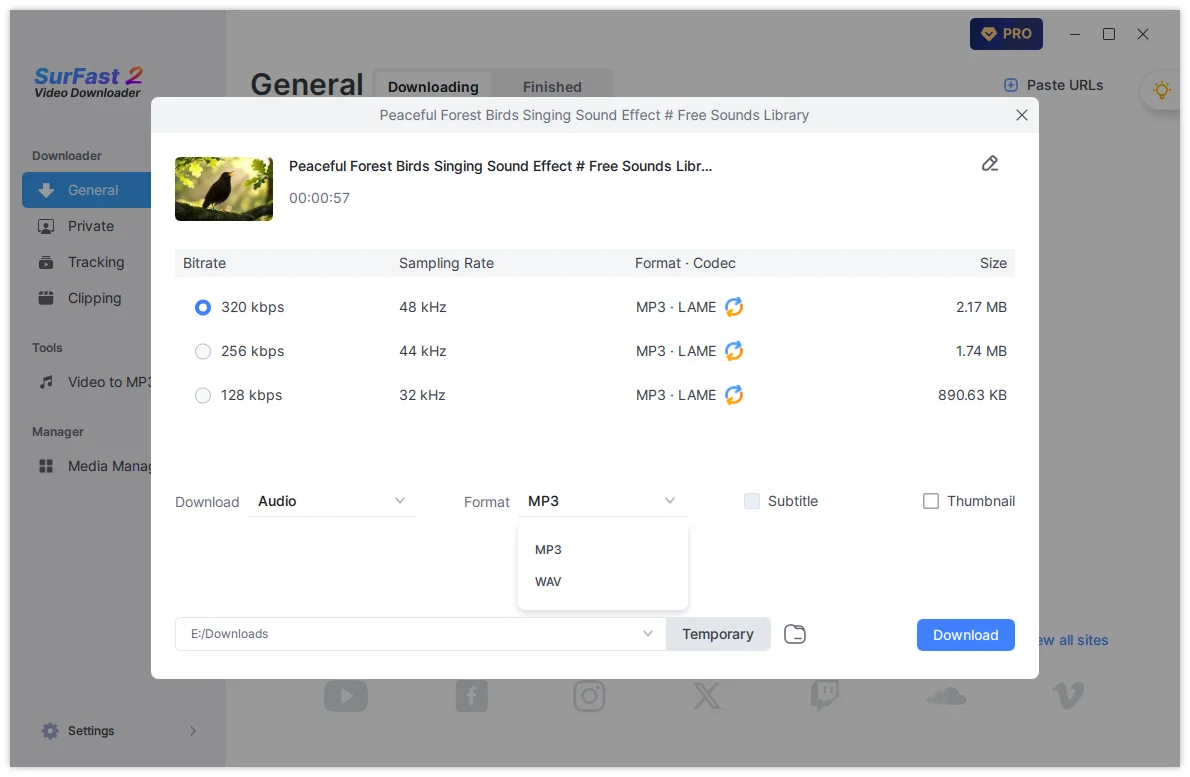
Using the Private panel:
- Open the website in the Private panel and play the audio or video.
- Click the Download button and choose audio settings.
- Click Download.
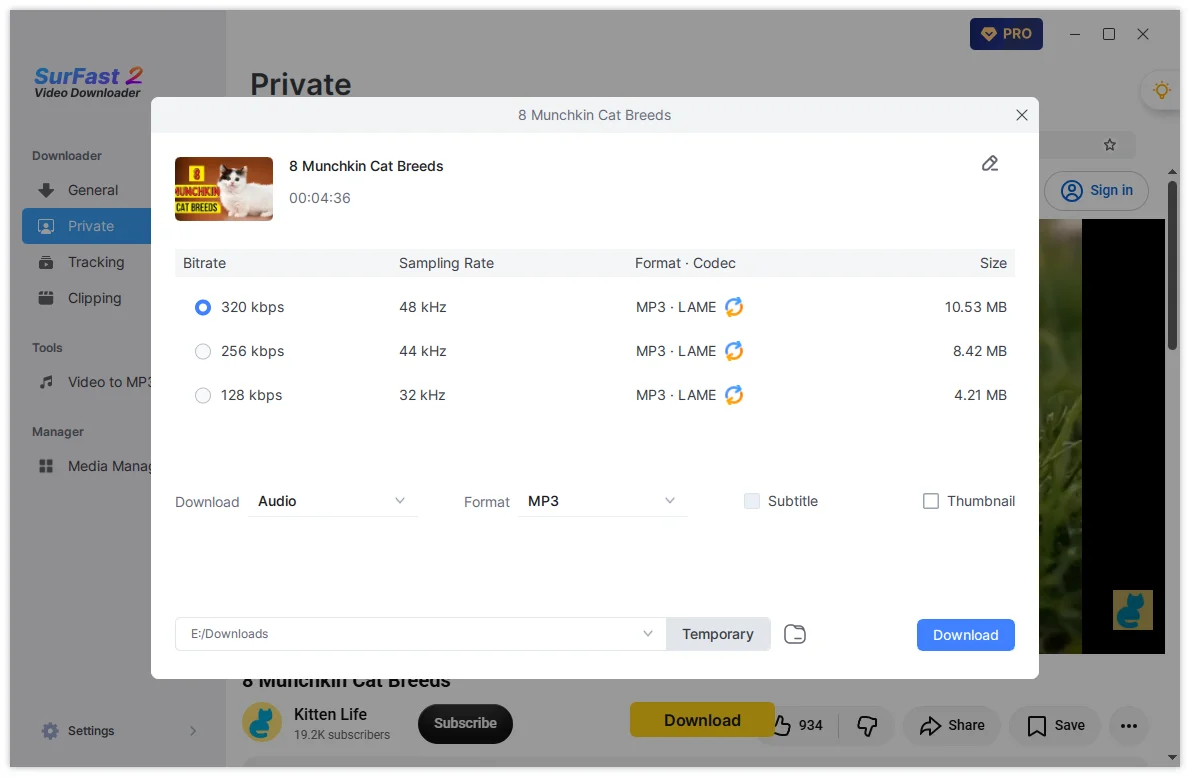
Using Global Settings (recommended for frequent audio downloads):
- Click the lightbulb icon to open Global Settings.
- Select Audio as the download content and choose your preferred format.
- Enable Always use the above settings.
- Paste any link — the app will automatically download the audio according to your preset.
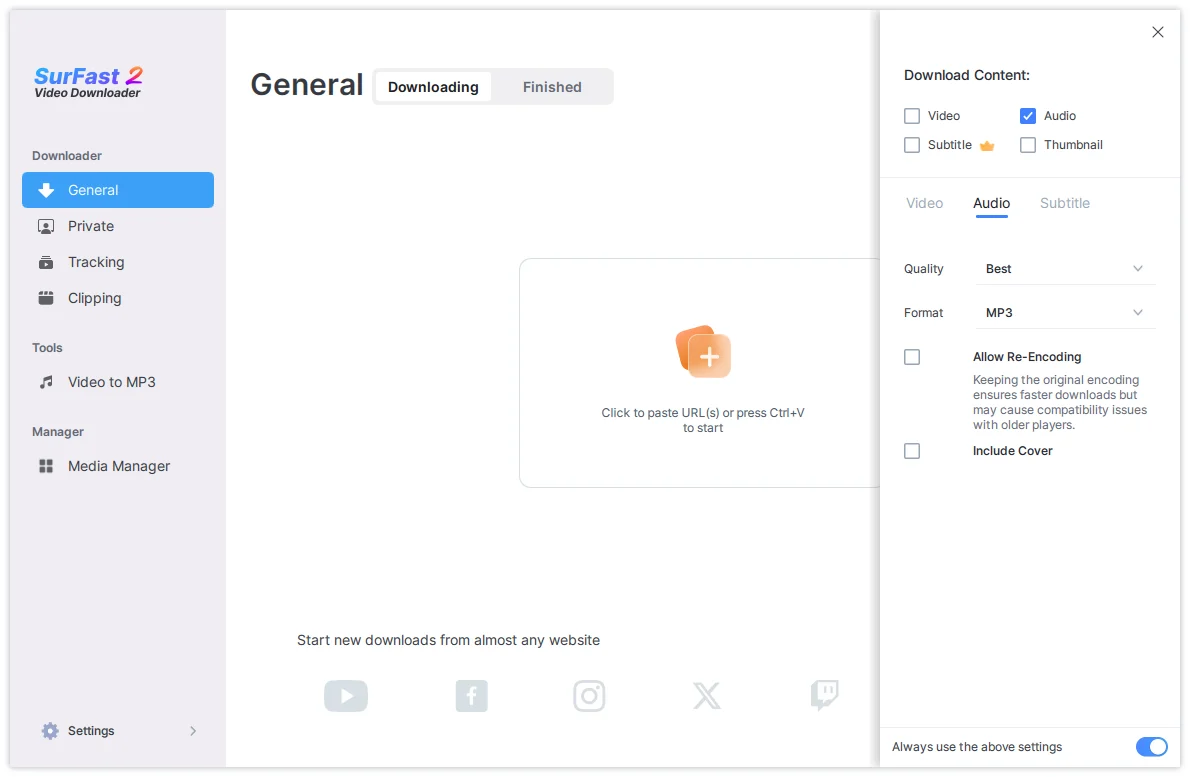
For downloading multiple audio files, follow the same batch method described in the video section.
How to Download Subtitles
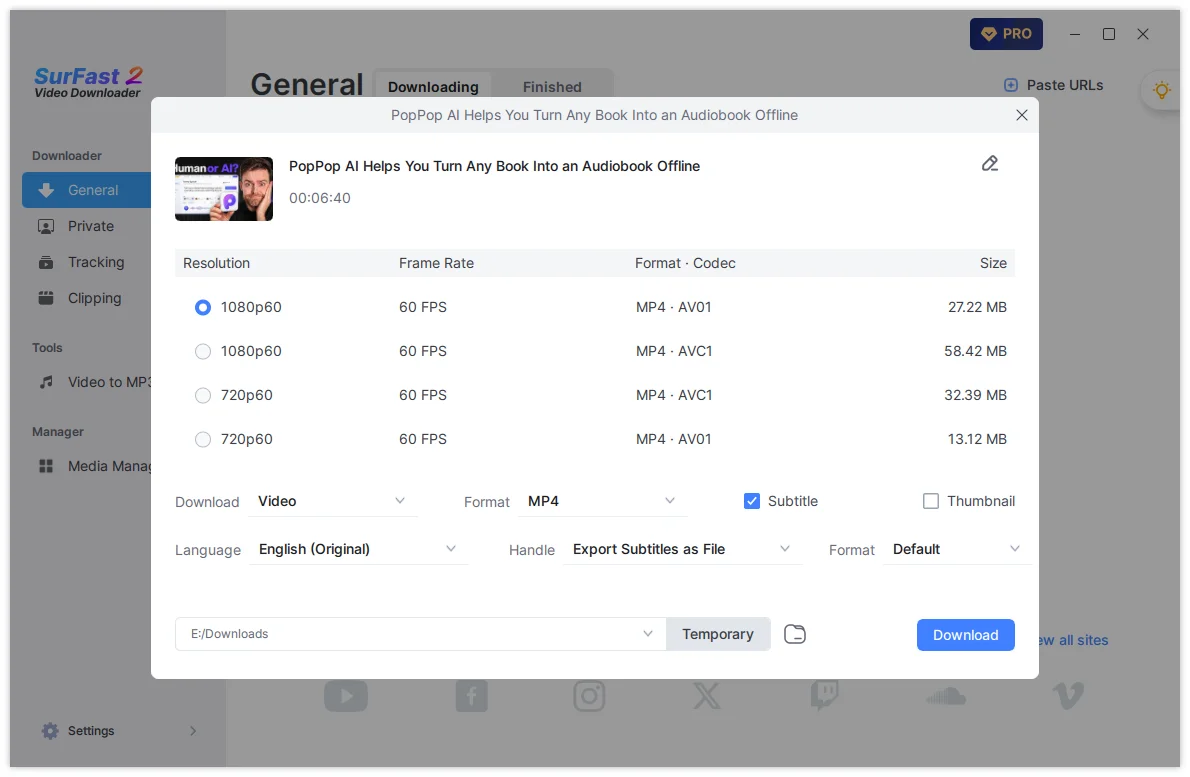
SurFast Video Downloader supports original subtitles, auto-generated subtitles, and auto-translated subtitles. You can save subtitles as a separate file, embed them as a selectable track, or burn them permanently into the video.
During download:
- Paste the video link.
- In the download settings window, check the Subtitle option.
- Choose the language and download method (separate file/embed/burn).
- If saving as a separate file, select the format (SRT, VTT, LRC, or ASS).
- Click Download.
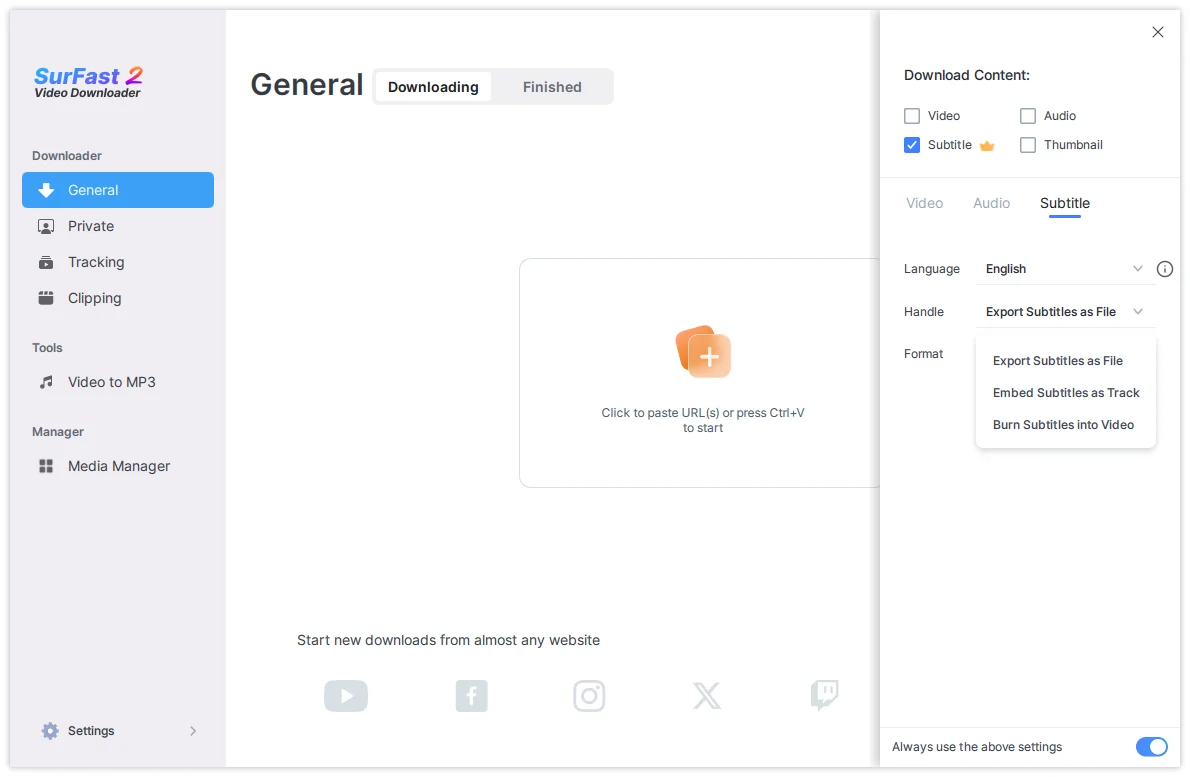
Using Global Settings:
- Click the lightbulb icon.
- Under Download Content, enable Subtitle and configure your preferred settings.
- Turn on Always use the above settings.
- Paste the video link — the app will download the subtitles automatically.
How to Download Thumbnails
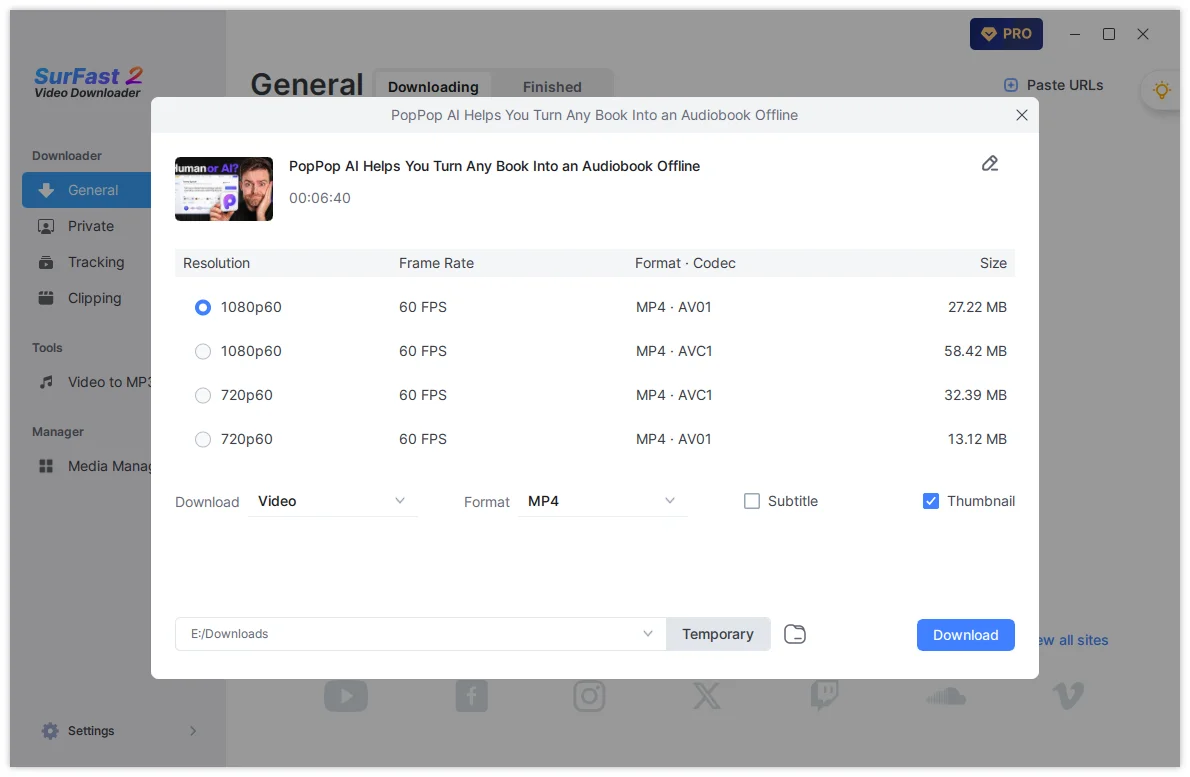
You can download thumbnails together with a video or save the thumbnail only.
To download a video with its thumbnail:
- Paste the video link.
- In the download settings, check the Thumbnail box.
- Click Download.
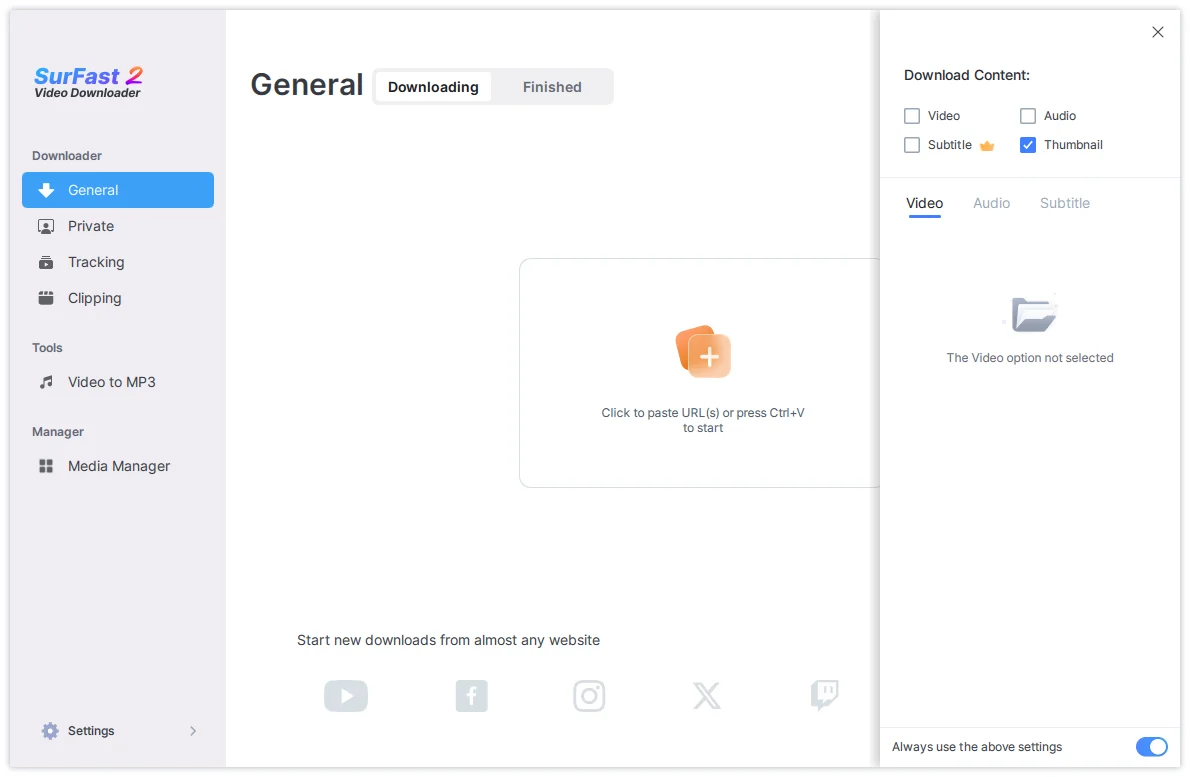
To download the thumbnail only:
- Open Global Settings (lightbulb icon).
- Enable Thumbnail and turn on Always use the above settings.
- Paste the video link — the app will download only the thumbnail.
Advanced Features
In addition to basic video and audio downloads, SurFast Video Downloader offers several advanced features designed to handle more specific needs.
Download Private or Members-Only Content
You can download private videos or member-only content via the Private panel.
- Go to the Private panel and open the target website.
- Sign in with your account.
- Find and play the video, then click the Download button.
- Choose your settings and start the download.
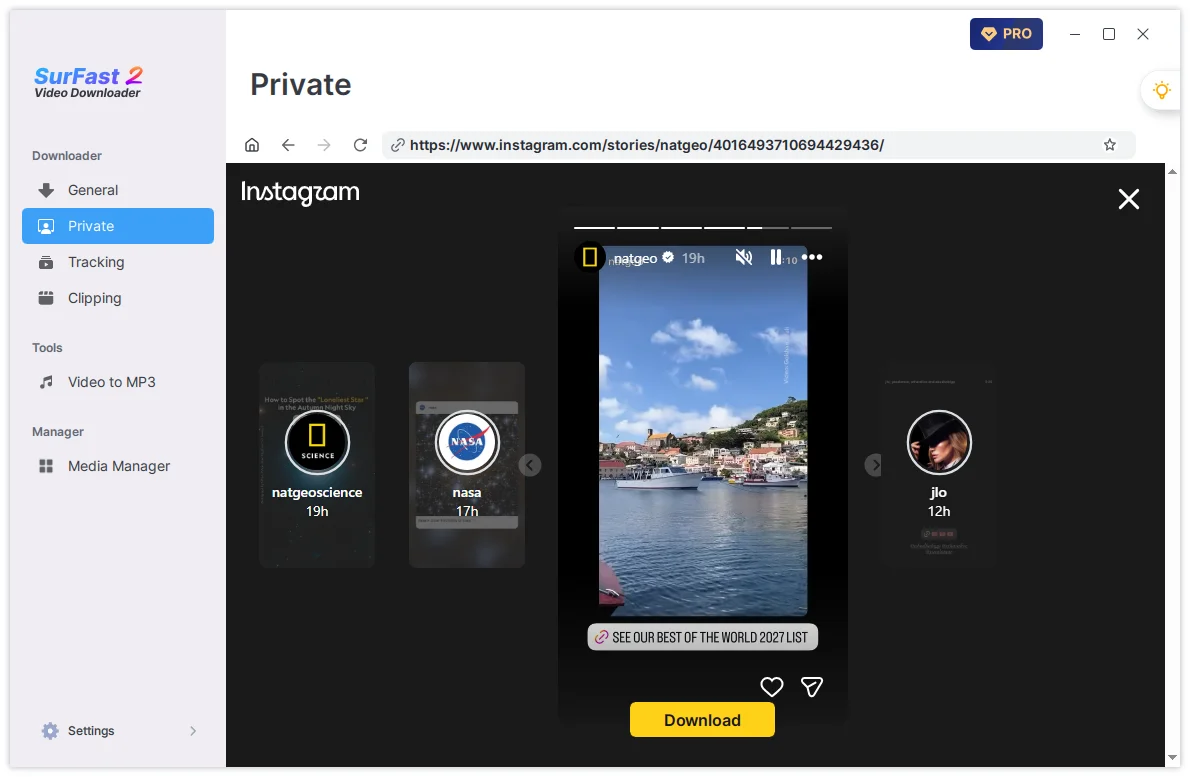
Note: After signing in through the Private panel, you can also copy the link and download it normally from the General panel.
Automatically Download New Videos from a Playlist or Channel
You can add playlists or channels to your Tracking list so the app can automatically download new videos from these lists.
- Go to the Tracking panel and paste the playlist or channel URL.
- Click Search, then click Track.
- Set the check frequency (daily, weekly, or monthly) and your preferred download settings.
- Confirm to start tracking.
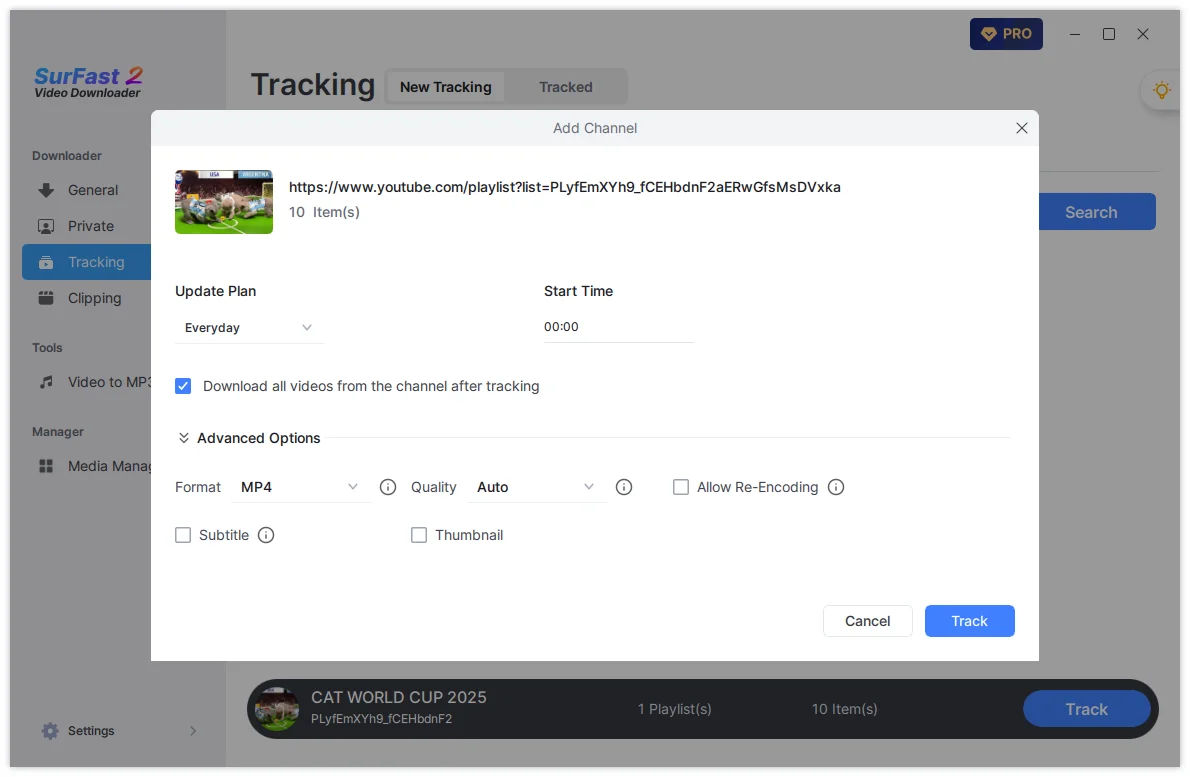
Important: Your computer must be turned on, and SurFast Video Downloader must be running for automatic downloads to work.
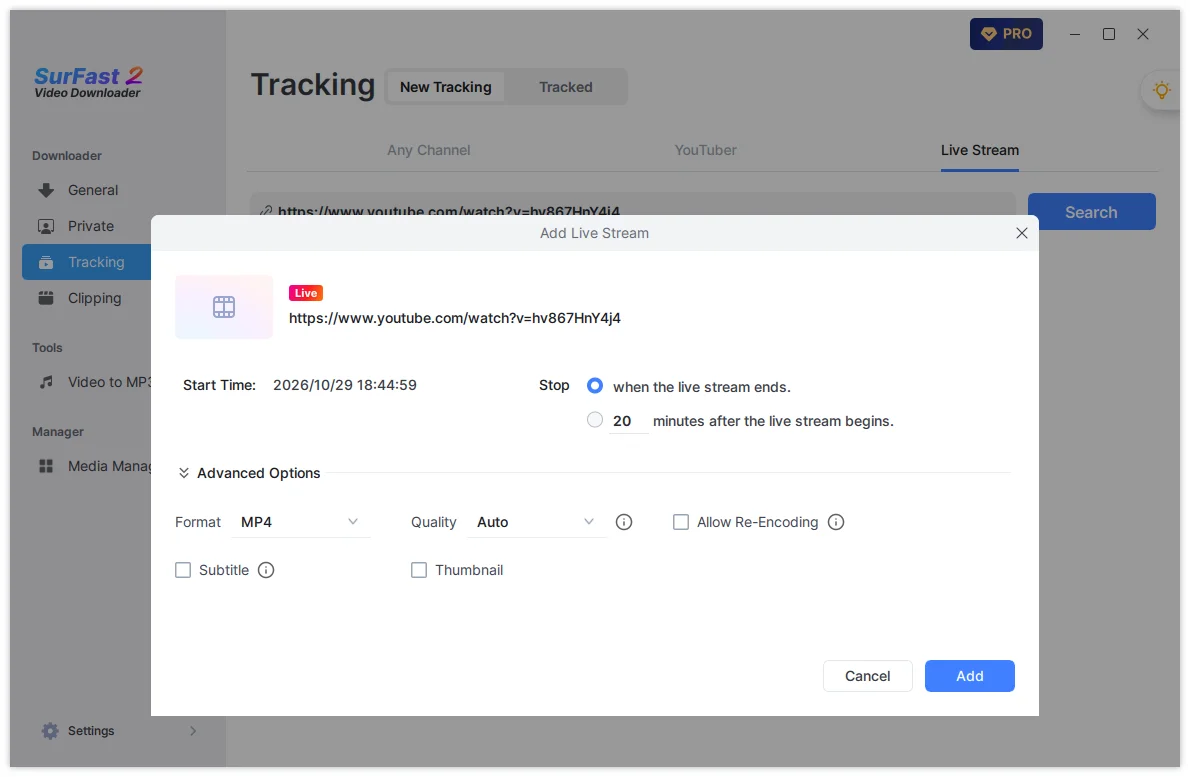
Schedule Downloads for Upcoming Live Streams
- Copy the live stream URL.
- Go to Tracking → Live Stream, paste the link, and click Search.
- Set when the download should stop, along with format and quality.
- Click Add. The app will automatically start downloading when the live stream begins.
Download a Selected Portion of a Video or Audio
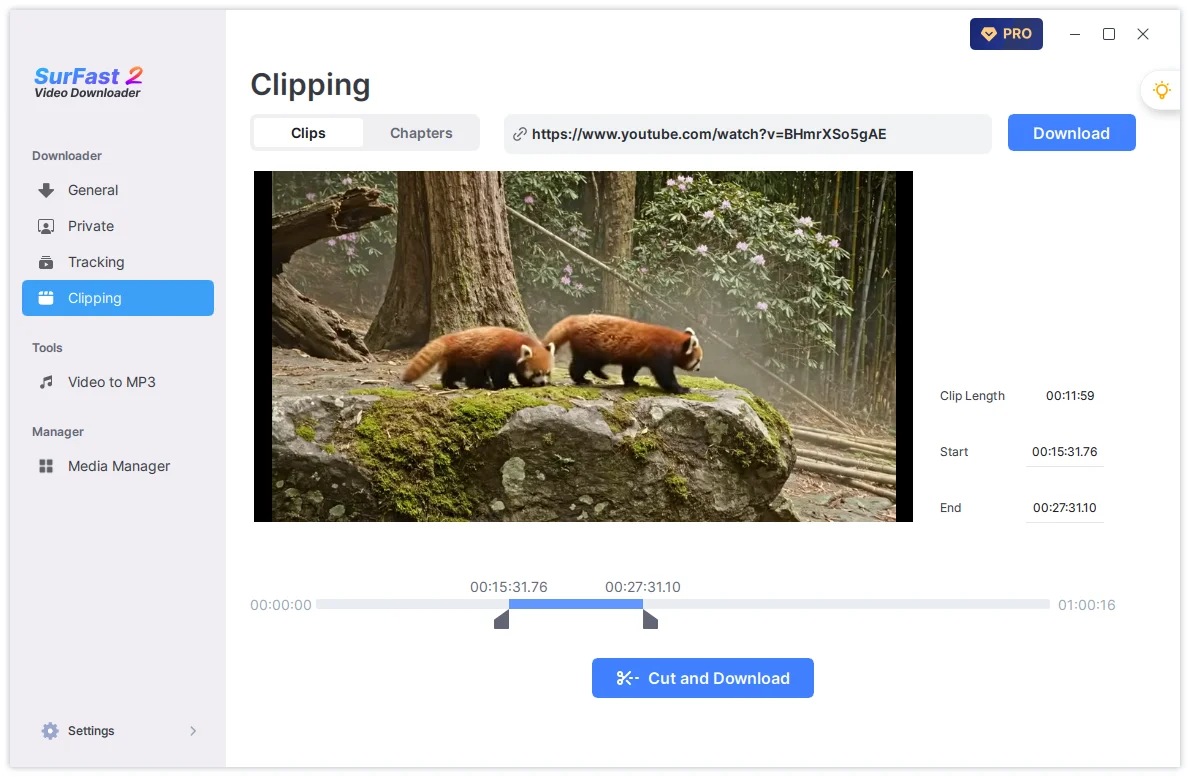
The Clipping feature works to clip a video or audio file to save only the portion you need.
- Paste the link into the Clipping panel and click Download.
- Set the start and end time using the timeline or by entering the values manually.
- Click Cut and Download, then choose format and quality.
- Click Download to start.
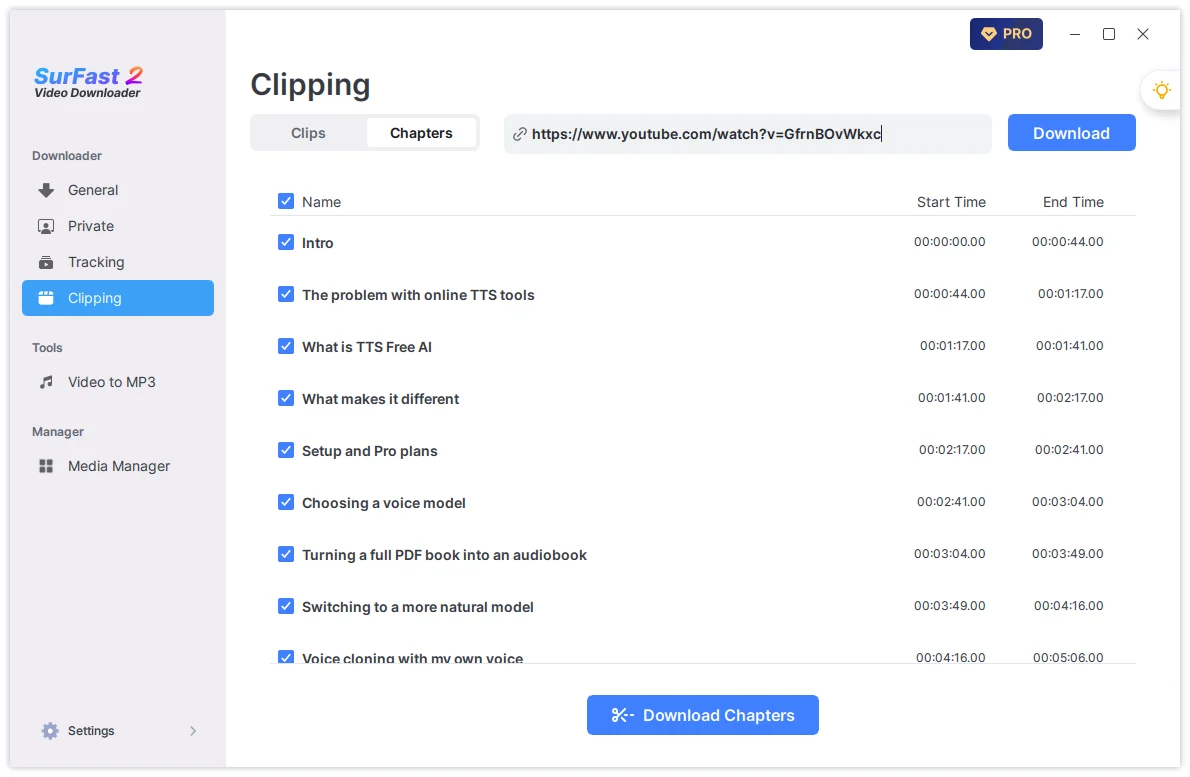
Download YouTube Chapters as Separate Files
- Paste the YouTube video link into the Clipping panel.
- Switch to the Chapters tab.
- Click Download Chapters.
- Set your preferred format and quality, then click Download.
Using Global Settings for Faster Downloads
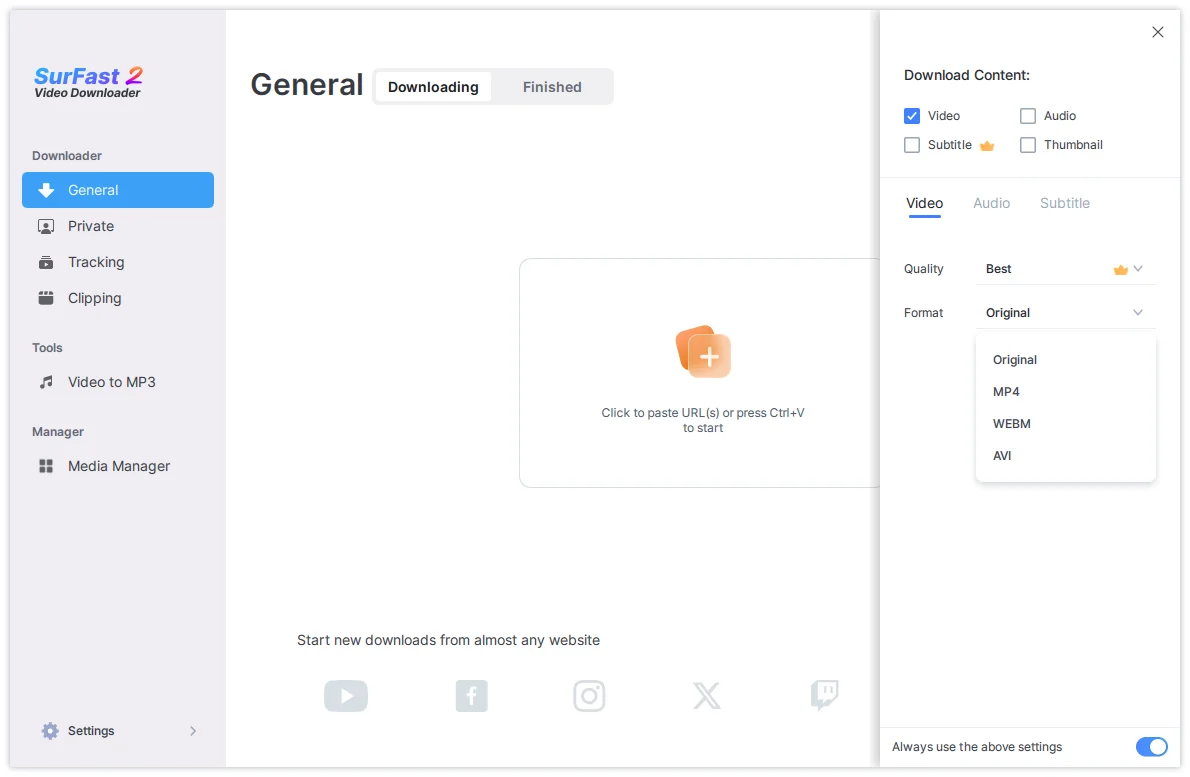
Global Settings let you preset your preferred format, quality, and other options so you don’t have to configure them every time.
- Click the lightbulb icon.
- Select the content type (Video, Audio, Subtitle, or Thumbnail).
- Adjust the settings as needed.
- Enable Always use the above settings.
- Paste any link — the app will start downloading automatically according to your presets. This is especially useful for playlists and channels.
How to Convert Videos to MP3
The Video to MP3 tool lets you convert local video files into MP3 audio. Supported input formats include MP4, MKV, AVI, MOV, FLV, WebM, and more.
- Go to the Video to MP3 panel.
- Drag and drop video files or click to add them.
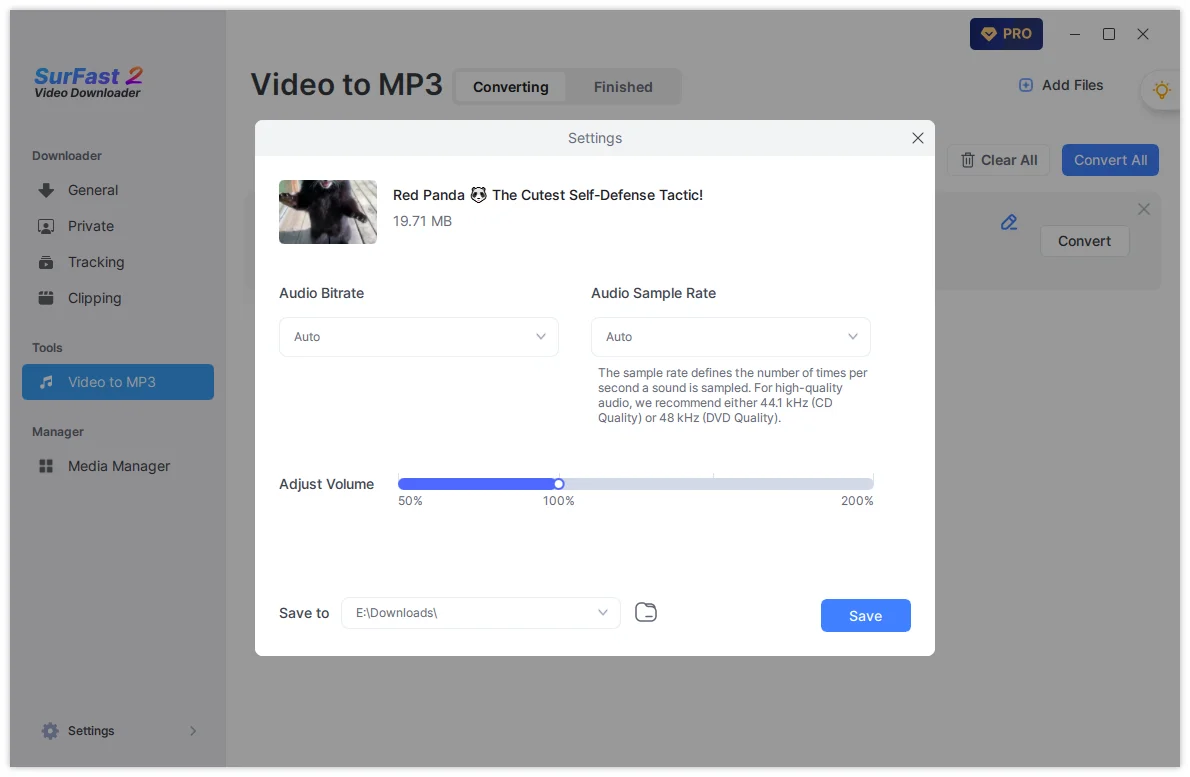
- Click the Settings icon to adjust bitrate, sample rate, and volume if needed.
- Choose the output folder and click Save.
- Click Convert to start the conversion.
You can convert a single video or multiple videos at the same time.