
How to Download Audio with SurFast Video Downloader
SurFast Video Downloader can save online audio, such as music and podcasts, and it can also turn an online video into an audio file. The same steps work for a single link or for a playlist or album.
Supported audio formats are MP3, WAV, M4A, FLAC, AAC, ALAC, OGG, and OPUS. Bitrate options include 128 kbps, 256 kbps, 320 kbps, and the original bitrate when the source provides it.
For complete usage instructions, see the SurFast Video Downloader Official Guide.
Table of contents
Download Audio with the General Panel
On most sites, the General panel is enough. Whether you want to save online audio or download video to audio, grab a single file or download a playlist, follow the steps below.
- Copy the audio, video, playlist, or album link.
- Open SurFast Video Downloader and stay on the General panel.
- Paste the link, or press Ctrl + V (Windows) or Cmd + V (Mac).
- Wait for the app to parse the link.
- Select Audio, then choose the format and bitrate.
- Choose the output folder and click Download.
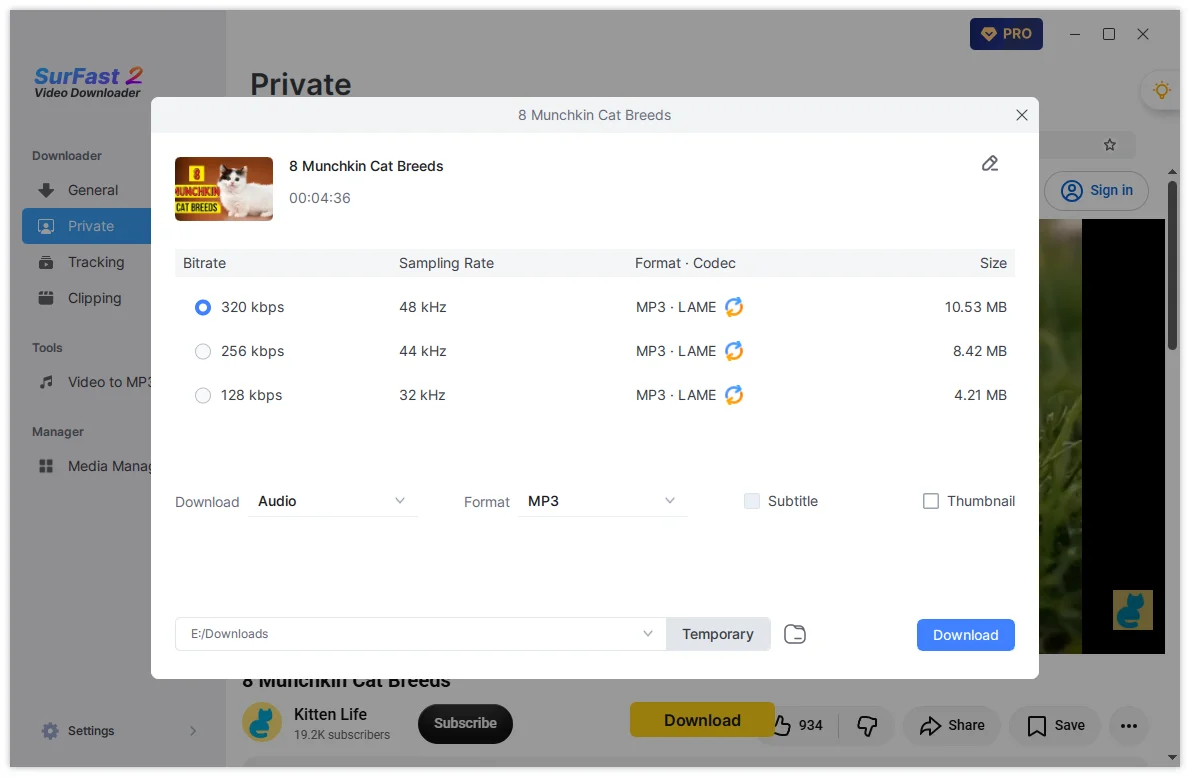
If you paste a video link and choose Audio, SurFast Video Downloader extracts the sound instead of saving the video. A playlist or album link downloads every item in that list.
If the General panel shows no audio option, or it does not list every format SurFast Video Downloader supports, use Global Settings below. Some sites do not offer a separate audio stream, so the format list in General can be incomplete.
Download Audio with the Private Panel
The Private panel has a built-in browser. Use it when a site asks you to sign in before you can play the audio or video or when you need to download private content.
- Open the Private panel.
- Visit the site and sign in with the account that can play it.
- Find the track, video, playlist, or album and play it.
- Click the Download button on the interface.
- Select Audio, then choose the format, bitrate, and output folder.
- Click Download.
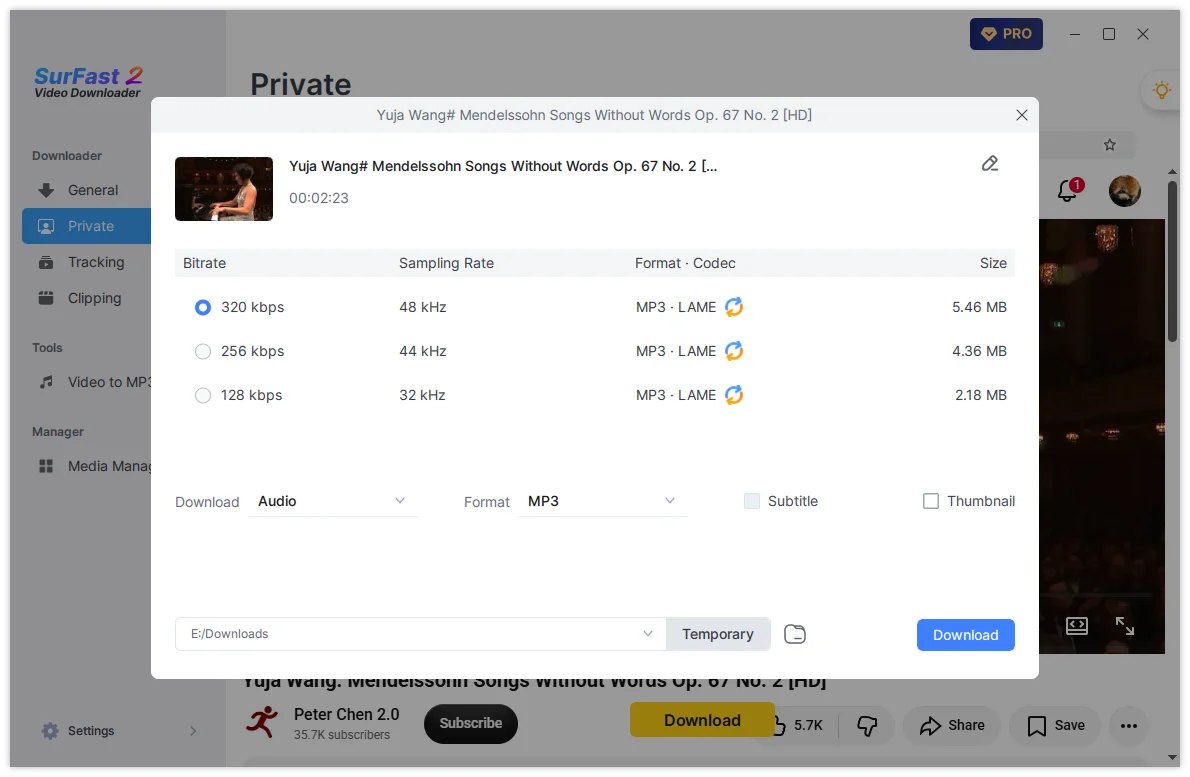
You only need to sign in once. SurFast Video Downloader keeps the session on your device until it expires or you clear the cache. The next time, copy the link and paste it into the General panel.
Download Part of an Audio File with Clipping
Clipping saves only the part of the video or audio you select. It works for an audio link or for the audio from a video. There is no length limit.
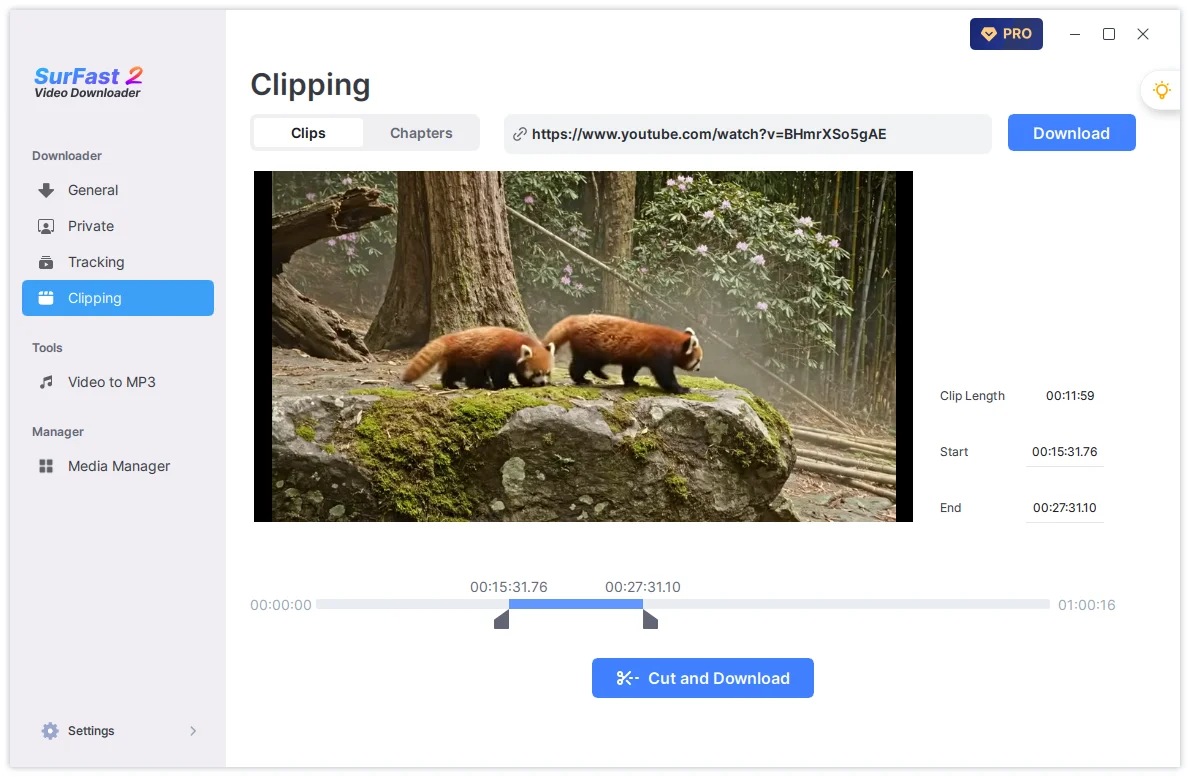
- Open the Clipping panel.
- Paste the link and click Download.
- Set the start and end time on the timeline, or type the times.
- Click Cut and Download.
- Choose an audio format, bitrate, and output folder.
- Click Download.
Download Audio with Global Settings
Use Global Settings when the General panel does not show an audio format, or when it does not show every format SurFast Video Downloader supports. You can also use it when you want every download to start as audio without choosing options each time.
- Click the lightbulb icon.
- Select Audio.
- Choose the format and bitrate.
- Turn on Always use the above settings.
- Paste an audio, video, playlist, or album link.
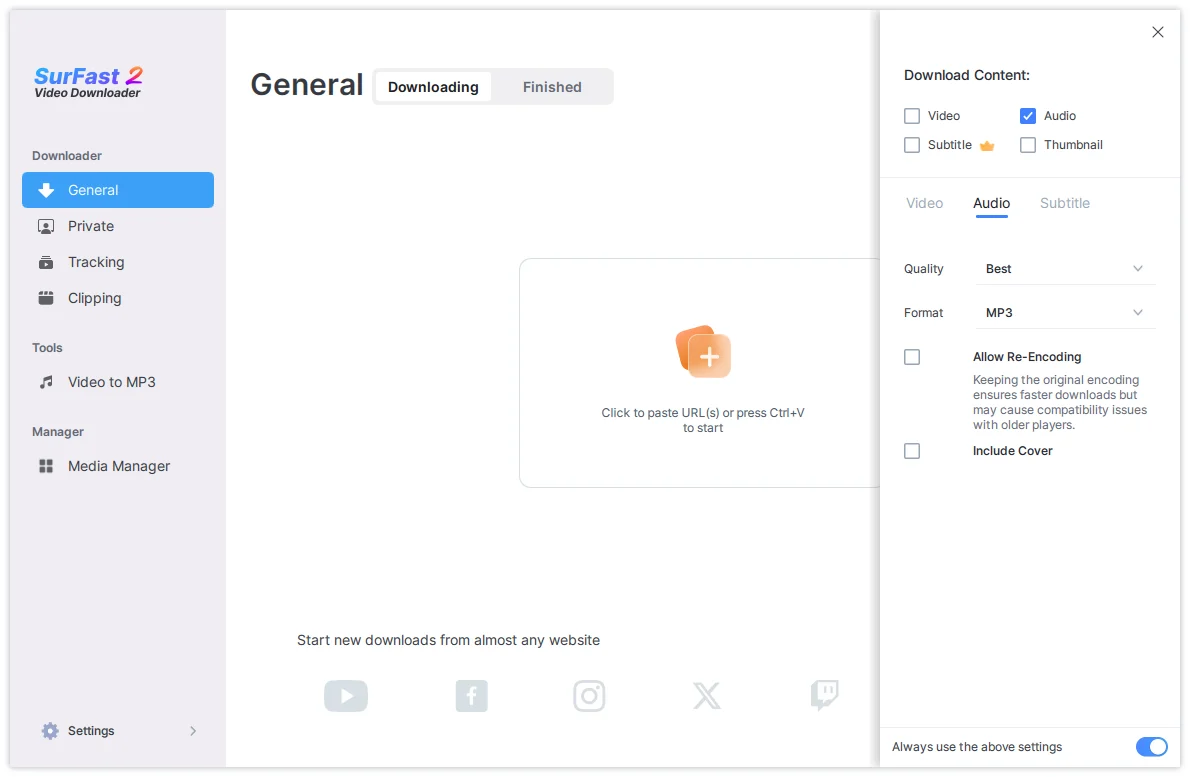
SurFast Video Downloader downloads and converts the file with those settings, including when the source page itself does not offer that format. This also applies to playlists and albums, so you do not have to wait for every item to load and then set the format by hand.
To save local video files already on your computer as MP3, use the separate Video to MP3 panel. That tool only converts local files, and the output is MP3.
Summary
| Way to download | Use it when |
|---|---|
| General panel | The site shows an audio option. Works for single items, playlists, and albums |
| Private panel | You must sign in before you can play the file |
| Clipping | You only need part of the audio |
| Global Settings | Audio formats are missing in General, or you want the same audio settings every time |