How to Download Private or Members-Only Videos with SurFast Video Downloader
SurFast Video Downloader can download some private and members-only videos, but only when your own account already has permission to view them. Support is not available on every platform.
For complete usage instructions, see the SurFast Video Downloader Official Guide.
Table of contents
What You Can Download
The Private panel is for videos that are not public and that your own account can already open. Support depends on the site. Examples that currently work include:
- Private YouTube videos that your account can open
- Bilibili members-only videos that your account can watch
- Instagram Stories that are visible to your account
Other sites may also work when your account can view the content, but support is not available on every platform. Private Facebook videos, for example, are no longer supported. The app also does not download DRM-protected content or private videos that your account is not allowed to view.
Download Private or Members-Only Videos in the Private Panel
The Private panel includes a built-in browser. When a video requires you to sign in before you can watch it, open that site here and sign in with the account that has access. Once you are signed in, you can download video or download audio directly from this panel.
- Open SurFast Video Downloader and go to the Private panel.
- Open the target website in the built-in browser.
- Sign in with the account that can view the video.
- Find the video and play it.
- Click the Download button shown on the interface.
- Choose the format, resolution, and output folder.
- Click Download again.
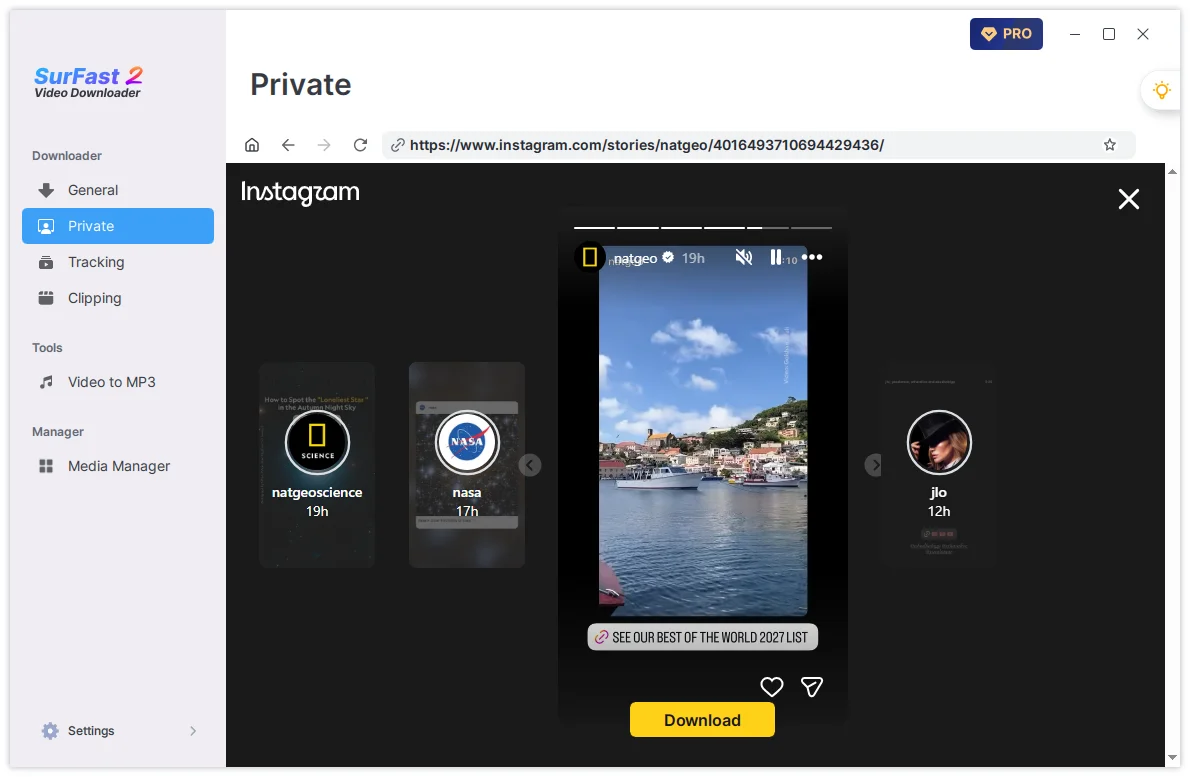
To download subtitles along with the video, simply enable the Subtitle option before clicking the Download button.
Download with a Link After You Have Signed In
You only need to sign in once in the Private panel. SurFast Video Downloader keeps that session on your device until it expires or you clear the cache.
The next time you want to download a private or members-only video from the same site:
- Copy the video link.
- Go to the General panel and paste the link.
- Choose the format, resolution, and output folder.
- Click Download.
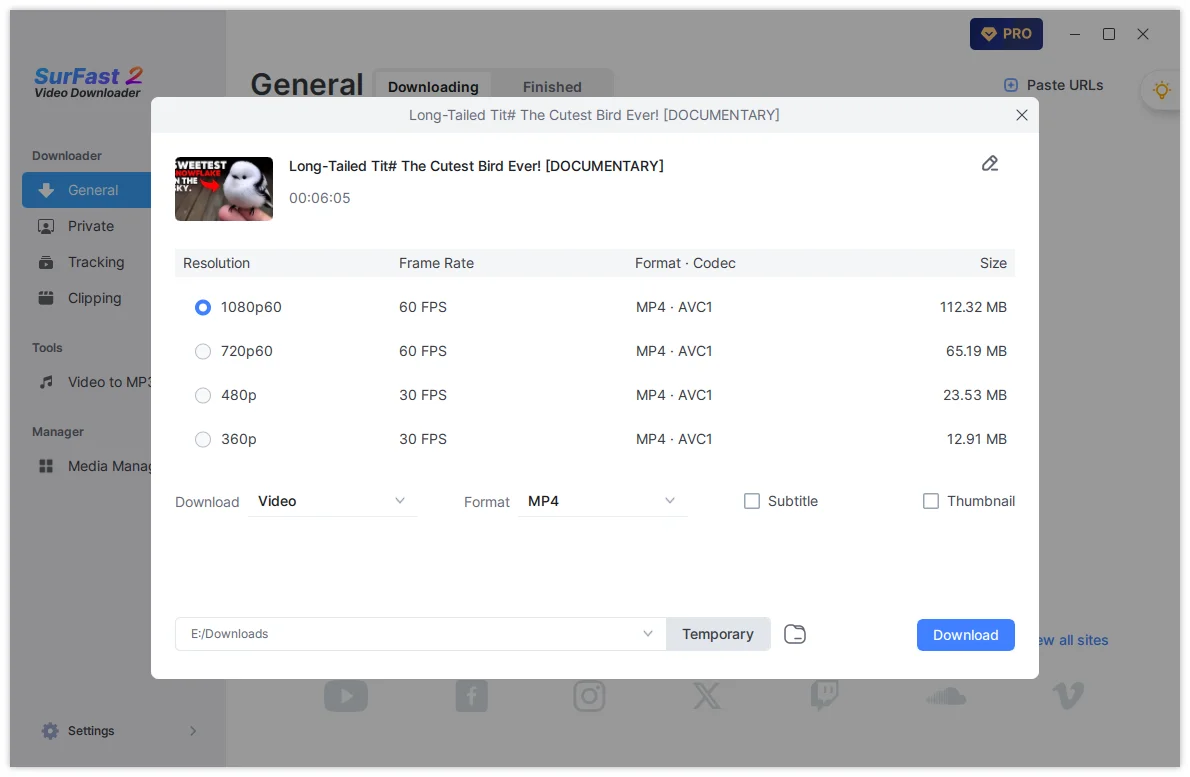
You do not need to open the Private panel again unless the session has expired. If the link cannot be parsed, sign in again through the Private panel and then try the link in General. If you only want to download part of the video, go to the Clipping panel instead.
Important Notes
- You can only download videos your account is authorized to view.
- Support varies by site. A private or members-only video on one platform may not be downloadable on another.
- Private Facebook videos are no longer supported.
- DRM-protected content cannot be downloaded.
- If the session expires, sign in again through the Private panel.
Summary
| Content | Supported | How to Download |
|---|---|---|
| Private YouTube videos you can view | Yes | Sign in via Private, then download |
| Bilibili members-only videos you can watch | Yes | Sign in via Private, then download |
| Instagram Stories visible to your account | Yes | Open in Private, then download |
| Private Facebook videos | No | Not supported |
| DRM-protected content | No | Not supported |
With the Private panel, you can save supported private and members-only videos that your account is already allowed to watch.