
How to Download Playlists, Albums, and Channels with SurFast Video Downloader
SurFast Video Downloader makes it easy to download entire playlists, albums, or channels in just a few steps. Instead of saving videos one by one, you can grab everything with a single link. This guide covers three practical methods: using the General panel, the Private panel, and Global Settings.
For more detailed instructions on other features, see the SurFast Video Downloader Official Guide.
Table of contents
Before you start
- Make sure SurFast Video Downloader is installed and open.
- Copy the playlist, album, or channel URL.
- Decide whether the content is public or requires a login.
Download playlists and channels using the General panel
This is the most straightforward way to download public playlists, albums, and channels. Whether you want to download videos or extract audio from videos, you can follow the steps below.
- Copy the playlist, album, or channel link.
- Open SurFast Video Downloader and go to the General panel.
- Paste the link (or press Ctrl + V / Cmd + V).
- Wait for the app to parse the link and load all videos.
- Choose your preferred format, resolution, and output folder.
- Click Download.
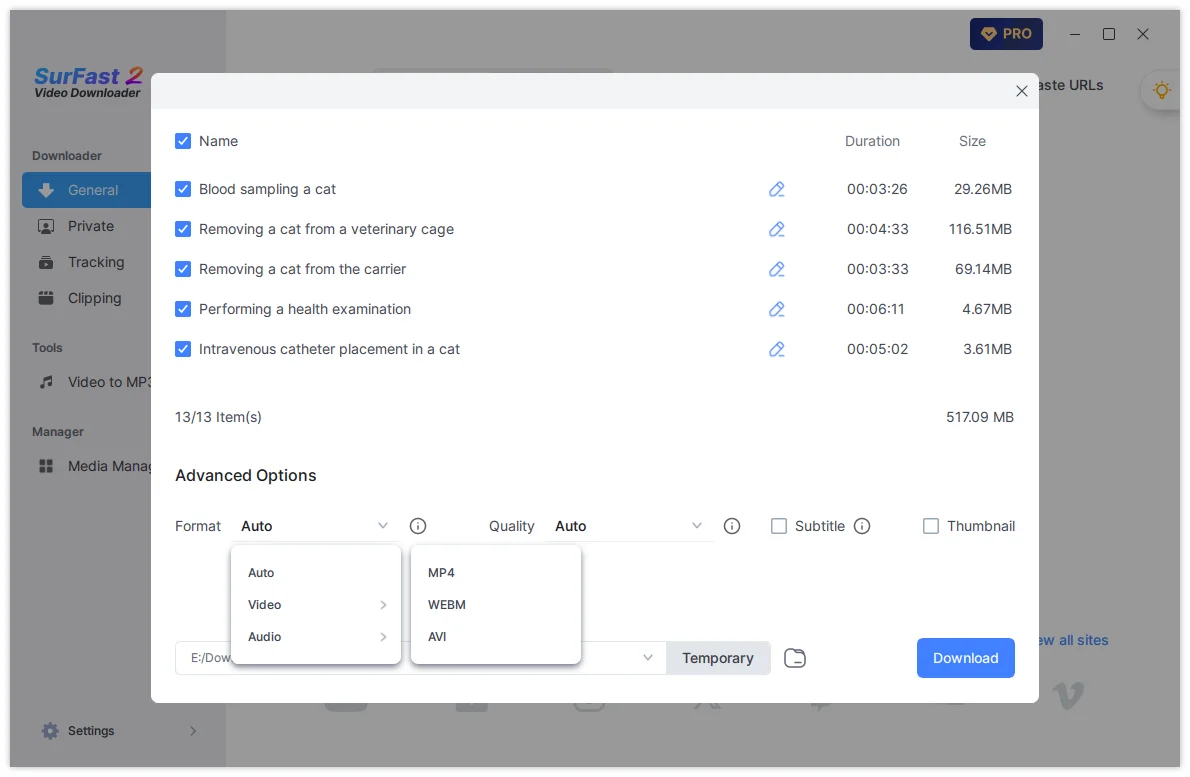
If you need to download subtitles, just check the Subtitle option before you click the Download button. You can monitor progress in the Downloading tab and find finished files in the Finished tab.
Download private playlists using the Private panel
Use this method when the playlist or channel requires you to sign in, especially when you download private videos.
- Switch to the Private panel.
- Visit the website and sign in with your account.
- Open the playlist, album, or channel page.
- Click the Download button that appears on the interface.
- Wait for the app to load all videos.
- Select your preferred format, resolution, and output folder.
- Click Download.
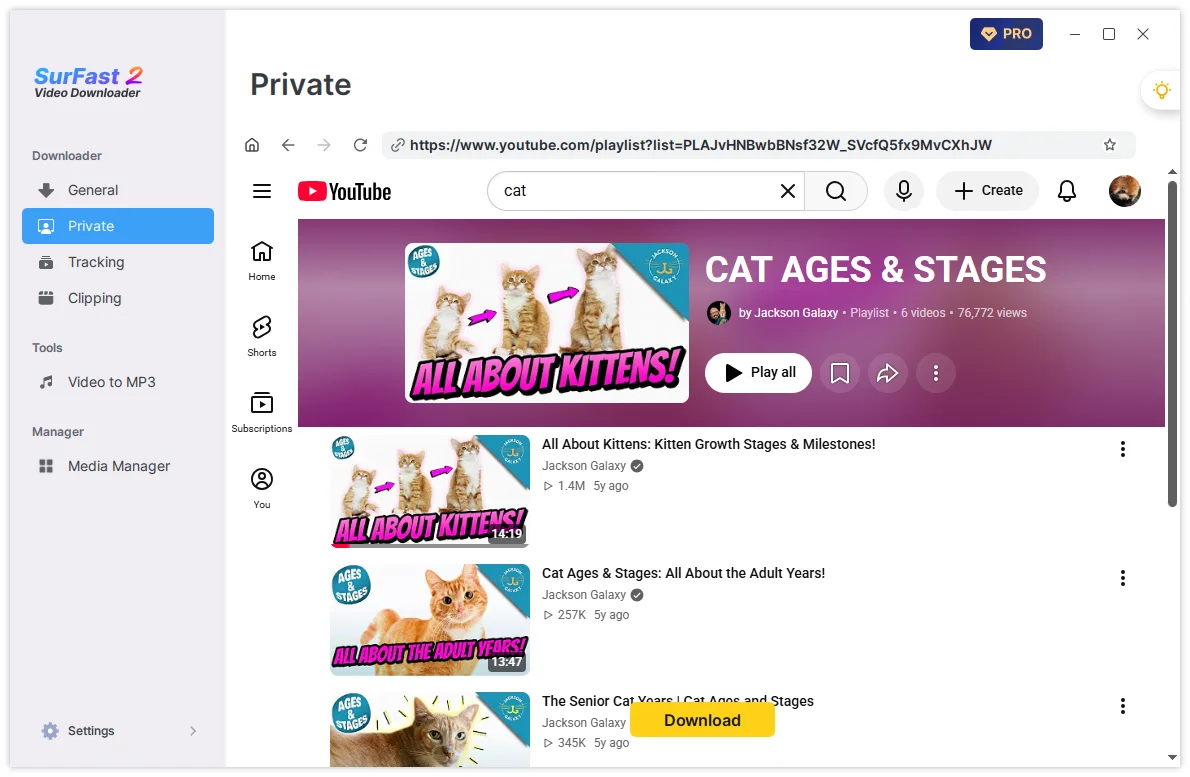
Tip: After signing in through the Private panel, you can also copy the link and paste it into the General panel.
Download playlists faster with Global Settings
Global Settings allow you to preset your preferred format and quality so the app can start downloading automatically after you paste a link. This is especially useful for large playlists and channels.
- Click the lightbulb icon in the top-right corner to open Global Settings.
- Select Video (or Audio if you only want the sound).
- Choose your preferred format, resolution, and other settings.
- Enable Always use the above settings.
- Paste the playlist, album, or channel link into the app.
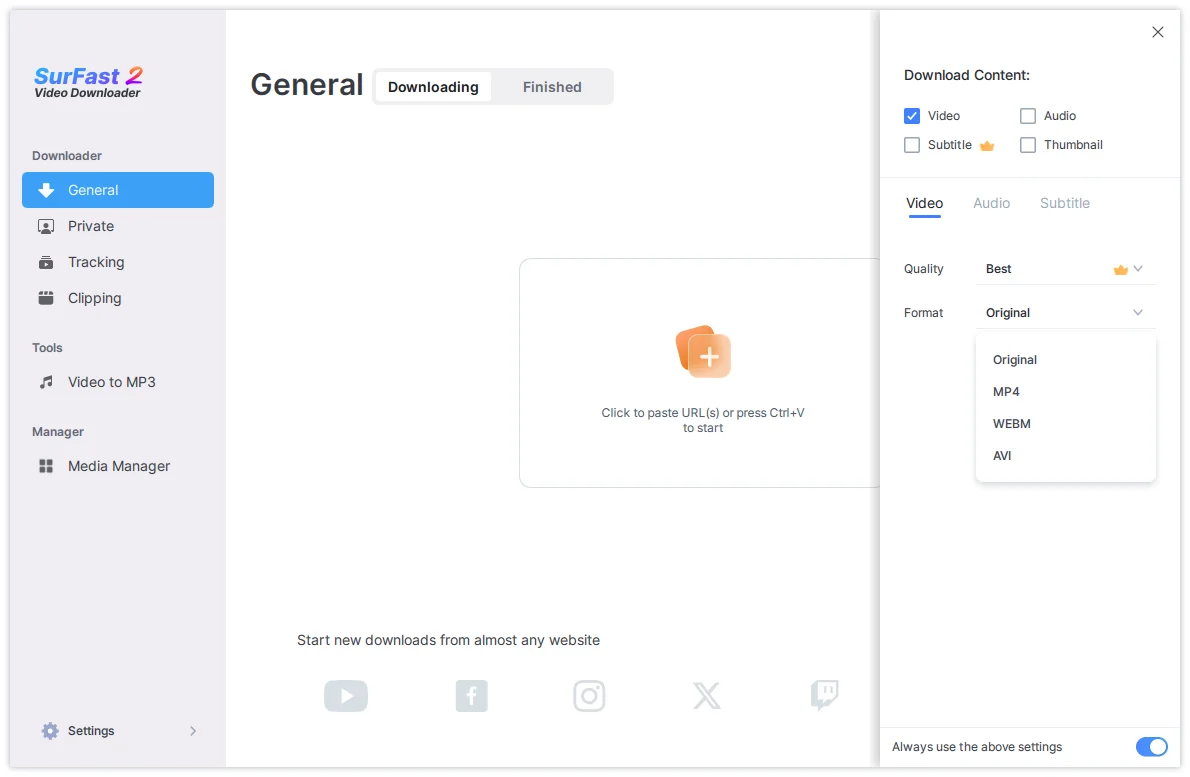
The download will start automatically according to your preset preferences, without needing to configure options every time.
Automatically download new videos with Tracking
If you want SurFast Video Downloader to keep downloading newly added videos, use the Tracking feature.
- Go to the Tracking panel.
- Paste the playlist or channel URL and click Search.
- Click Track.
- Set the check frequency (daily, weekly, or monthly).
- Choose your preferred download settings.
- Confirm to start tracking.
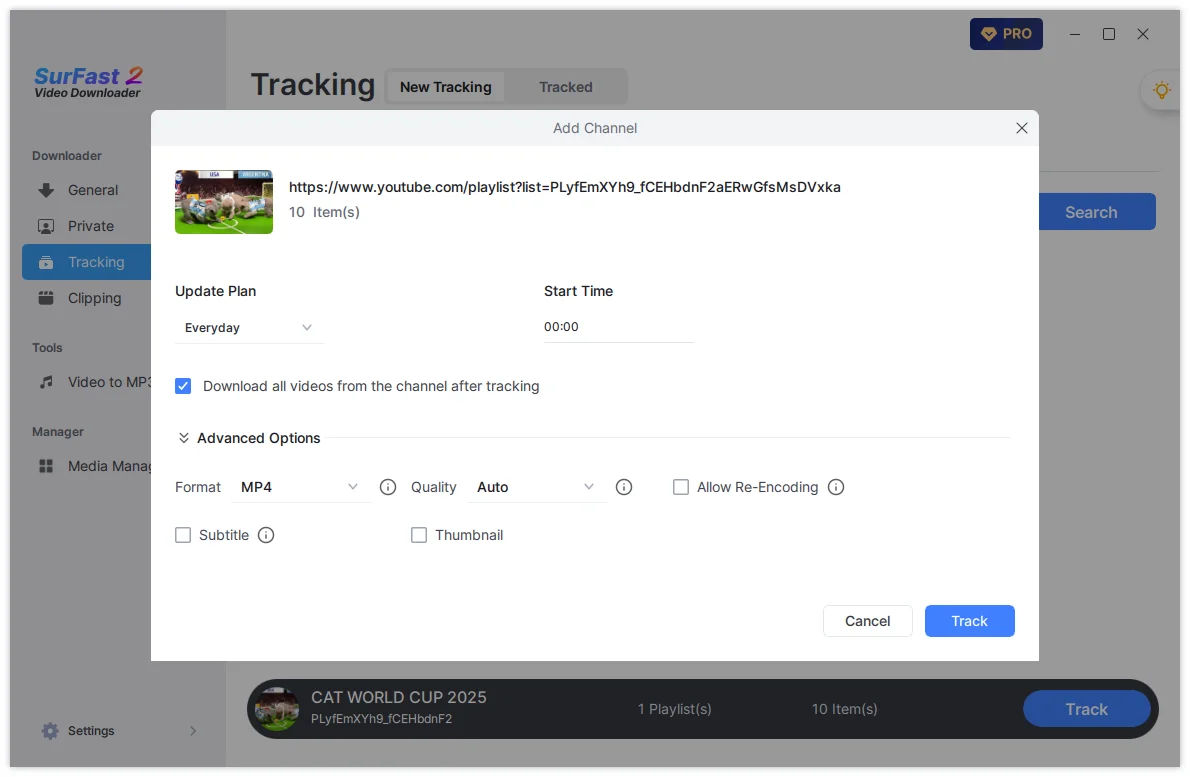
Important: Your computer must be powered on, and SurFast Video Downloader must be running for automatic downloads to work.
Extra tips
- You can paste multiple playlist or channel links at once to download them together.
- For music albums (such as on SoundCloud), the same methods apply. Simply choose an audio format if you only need the music.
- Large playlists may take longer to parse. Wait until all videos appear before starting the download.
- Combining Global Settings with the Tracking feature is the most efficient way to handle channels you follow regularly.
Quick comparison
| Method | Best For | Key Advantage |
|---|---|---|
| General Panel | Public playlists & channels | Fast and simple |
| Private Panel | Private / members-only content | Supports login-required content |
| Global Settings | Frequent or large downloads | Automatic start after pasting |
| Tracking | Ongoing channel/playlist updates | Downloads new videos automatically |
With these methods, you can easily download entire playlists, albums, and channels using SurFast Video Downloader.