
How to Automatically Download New Videos from Playlists or Channels with SurFast Video Downloader
SurFast Video Downloader can watch a playlist or channel and download new videos for you. The Tracking feature also lets you schedule a download for an upcoming live stream, such as a YouTube live stream, so the app starts saving it when the stream begins.
For complete usage instructions, see the SurFast Video Downloader Official Guide.
Table of contents
What the Tracking Feature Does
Tracking has two uses:
- Track a playlist or channel and automatically download videos added later.
- Schedule an upcoming live stream so the download starts when it goes live.
Your computer must be turned on, and SurFast Video Downloader must be running. If the app is closed or the computer is off, Tracking cannot check for updates or start a scheduled download.
Automatically Download New Videos from a Playlist or Channel
Whether you want to download video in MP4 or save audio, just follow the steps below.
- Open SurFast Video Downloader and go to the Tracking panel.
- Paste the playlist or channel URL and click Search.
- Click Track.
- Choose how often SurFast Video Downloader should check for updates: daily, weekly, or monthly.
- Set the format, resolution, and any other download preferences you want.
- Confirm to start tracking.
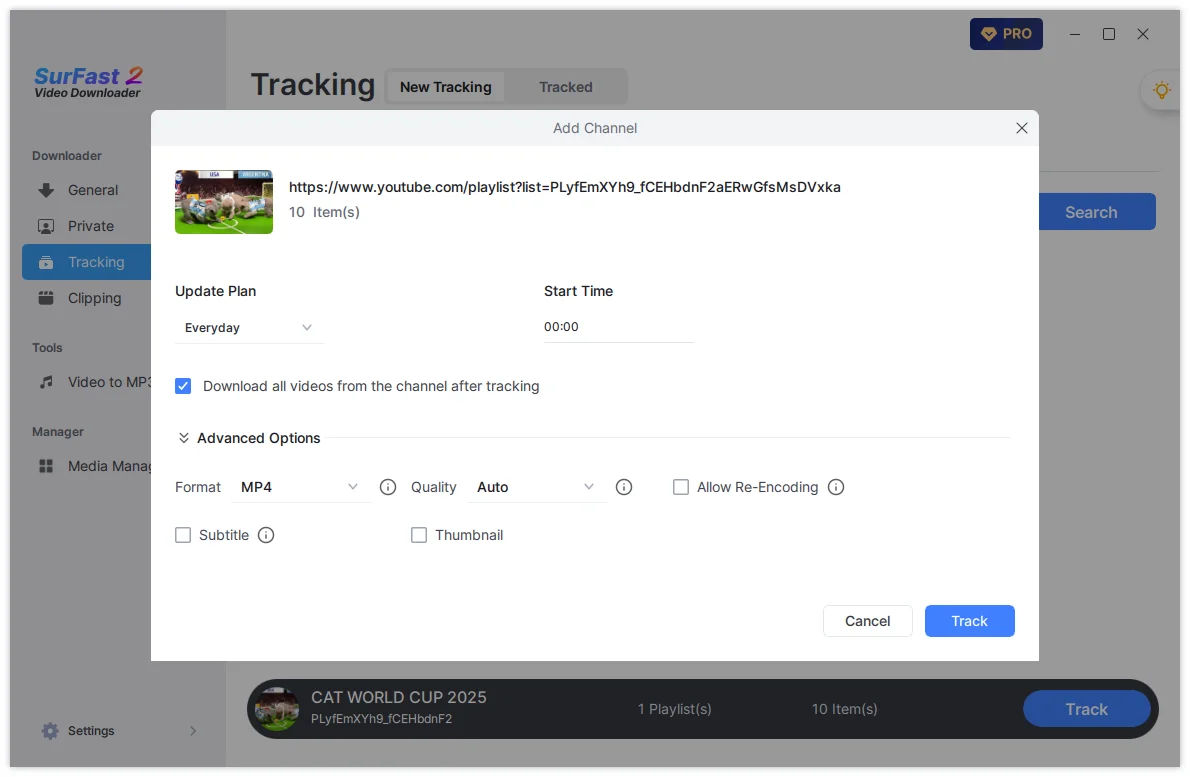
You can also click the download icon on the folder to download the playlist and save the existing videos.
When you need to download subtitles along with the video, check the Subtitle option.
When a new video is found, SurFast Video Downloader downloads it with the settings you chose. You do not need to paste the link again.
If the playlist or channel is private but your account can view it, sign in once through the Private panel first. After the session is saved, you can add that playlist or channel to Tracking.
Schedule a Download for an Upcoming Live Stream
Use this when the live stream has a page already, but has not started yet. YouTube live streams are a typical example.
- Copy the live stream URL.
- Go to Tracking, then open Live Stream.
- Paste the link and click Search.
- Set when the download should stop, plus the format and quality.
- Click Add.
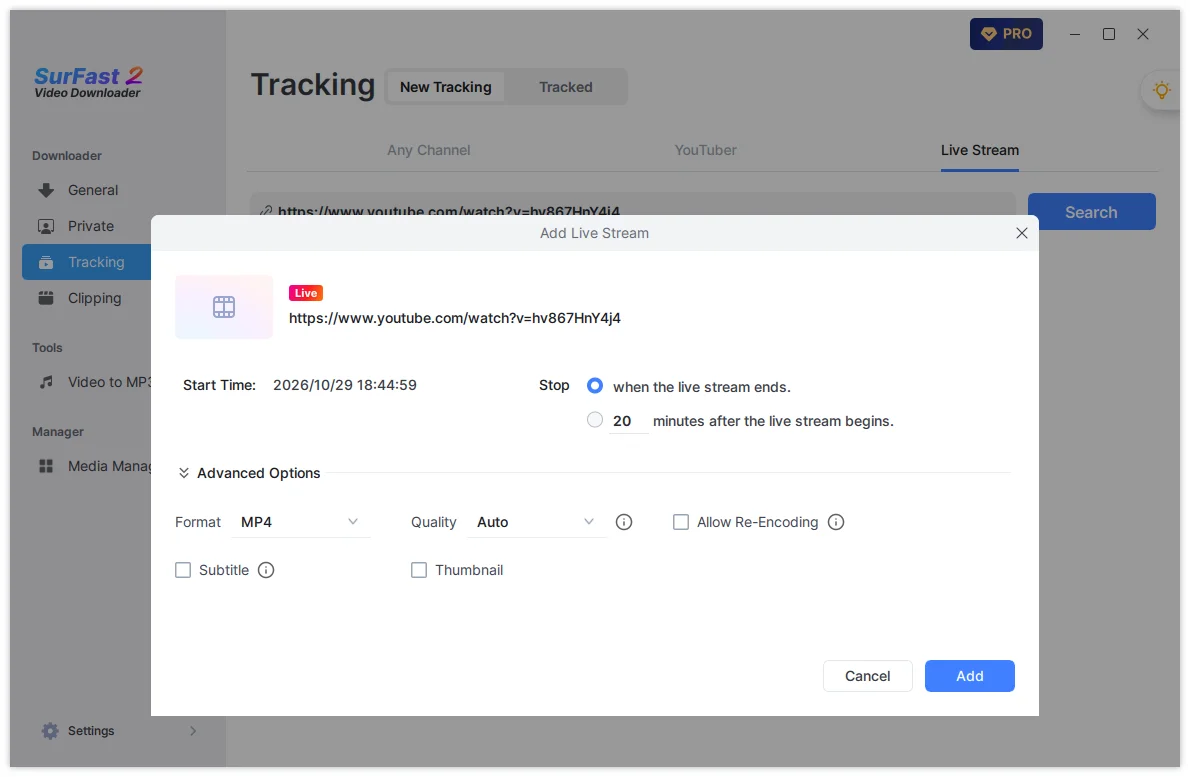
SurFast Video Downloader starts the download when the live stream begins. You can stop a live download at any time. The app keeps the portion that has already been saved.
Tips
- Set the format and quality before you confirm Tracking. Later downloads follow those preferences.
- For playlists or channels you download often, preset the same options in Global Settings (the lightbulb icon) and turn on Always use the above settings.
- A very large playlist may take longer to load the first time. Wait until the items appear before you start tracking.
- If automatic downloads stop, check that the computer was on and SurFast Video Downloader was running at the scheduled time. If the content requires a login, sign in again through the Private panel.
Summary
| Task | Where to Go | What You Need |
|---|---|---|
| Auto-download new playlist or channel videos | Tracking | Playlist or channel URL, check frequency, and download settings |
| Schedule an upcoming live stream | Tracking → Live Stream | Live stream URL, stop time, format, and quality |
| Track a private playlist you can view | Private, then Tracking | Sign in once, then add the playlist or channel |
| Make downloads actually run | Your computer | Computer on, and SurFast Video Downloader running |
Tracking saves you from checking a playlist, channel, or upcoming live stream by hand.