
How to Download Video with SurFast Video Downloader
SurFast Video Downloader saves online videos to your Windows PC or Mac. It works with regular videos, Reels, Shorts, clips, and live streams from supported sites such as YouTube, Instagram, TikTok, Facebook, and X.
You can save a single video or paste a playlist or channel link. Supported video formats are MP4, WebM, MOV, AVI, FLV, MKV, and GIF. Resolution depends on the source and can range from 144p up to 8K (7680×4320), including 4K, 2K, 1080p, and 720p.
For complete usage instructions, see the SurFast Video Downloader Official Guide.
Table of contents
Download Videos with the General Panel
Use the General panel for public videos, playlists, and channels.
- Copy the video, playlist, or channel link.
- Open SurFast Video Downloader and stay on the General panel.
- Paste the link, or press Ctrl + V (Windows) or Cmd + V (Mac).
- Wait for the app to parse the link.
- Choose the format, resolution, and output folder.
- Click Download.
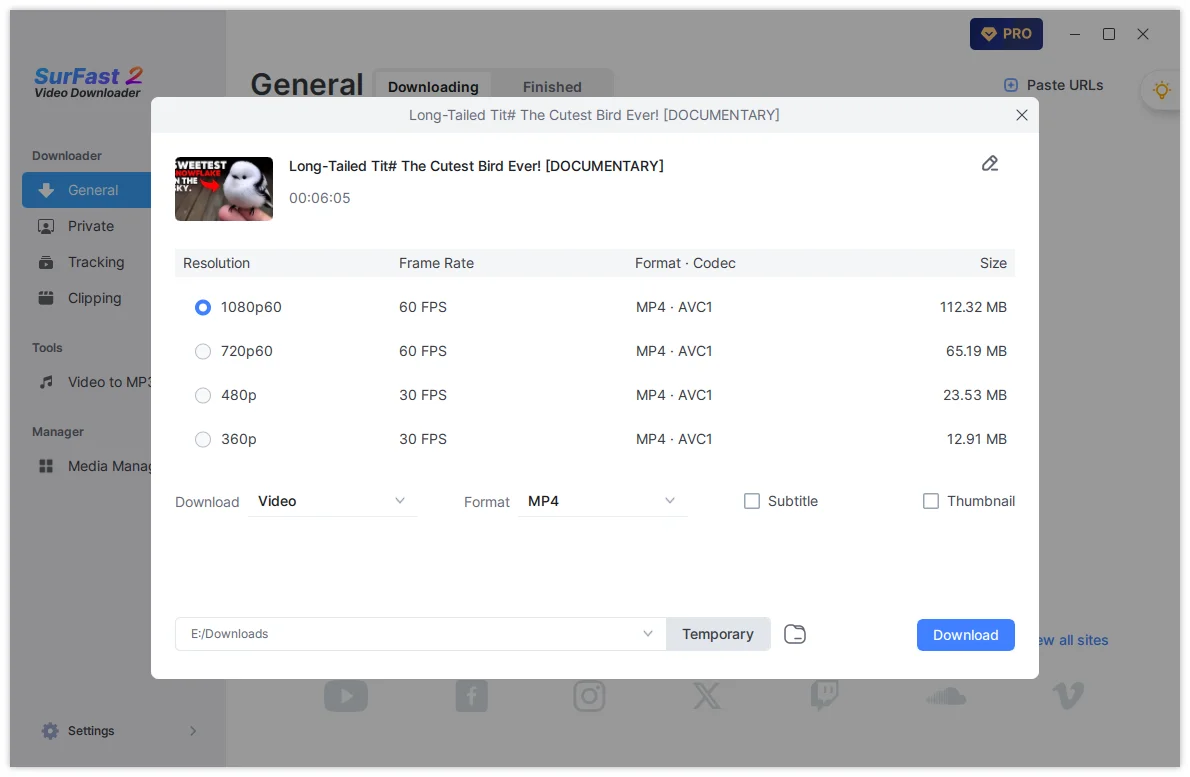
Check the Subtitle option if you want to download subtitles along with video. If you want to extract audio from the video, choose Audio as the output option.
Progress appears in the Downloading tab. Finished files are listed under Finished.
For playlist and channel details, see How to Download Playlists, Albums, and Channels.
Download Videos with the Private Panel
The Private panel has a built-in browser. Use it when a site asks you to sign in before you can watch the video.
- Open the Private panel.
- Visit the site and sign in with the account that can view the video.
- Find the video, playlist, or channel and play it.
- Click the Download button on the interface.
- Choose the format, resolution, and output folder.
- Click Download.
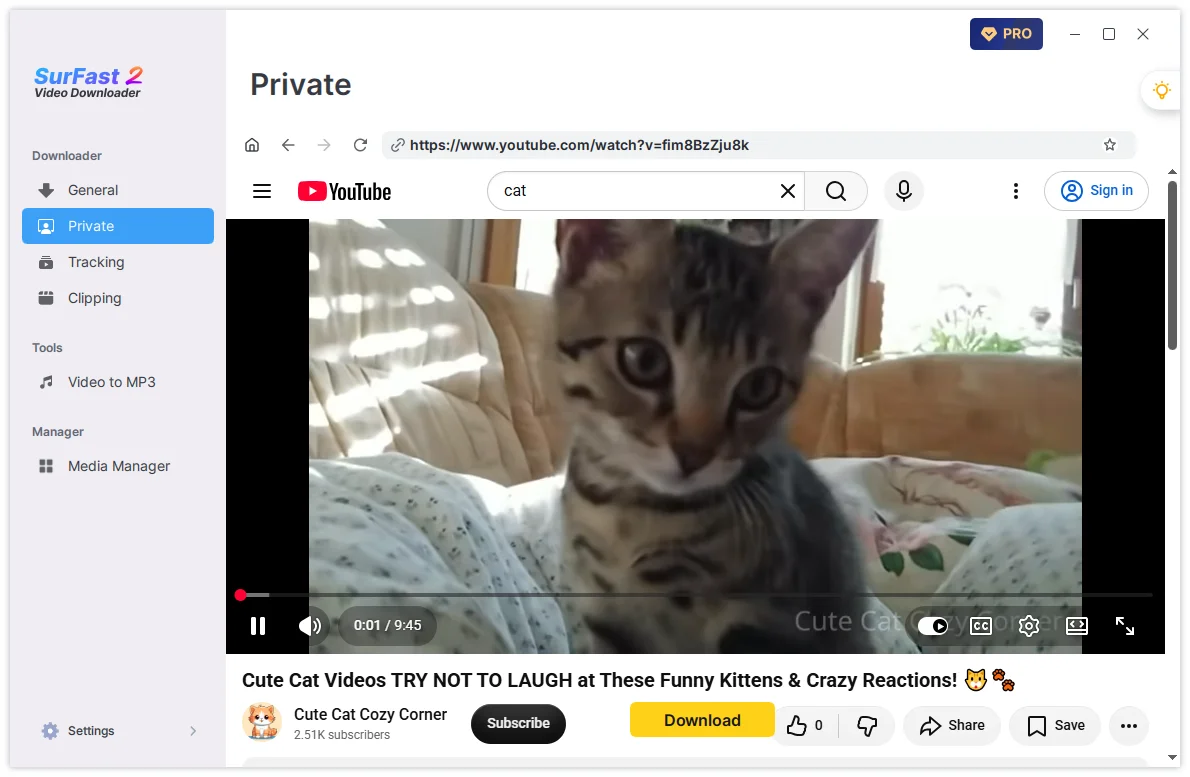
You only need to sign in once. SurFast Video Downloader keeps the session on your device until it expires or you clear the cache. The next time, copy the link and paste it into the General panel. You do not need to open the Private panel again unless the session has expired.
Not every private or members-only video can be downloaded. See How to Download Private or Members-Only Videos.
Download Part of a Video with Clipping
Clipping downloads any part of the video you need. It also works when you paste a playlist link and only need part of a video. There is no length limit.
- Open the Clipping panel.
- Paste the link and click Download.
- Set the start and end time on the timeline, or type the times.
- Click Cut and Download.
- Choose the format, resolution, and output folder.
- Click Download.
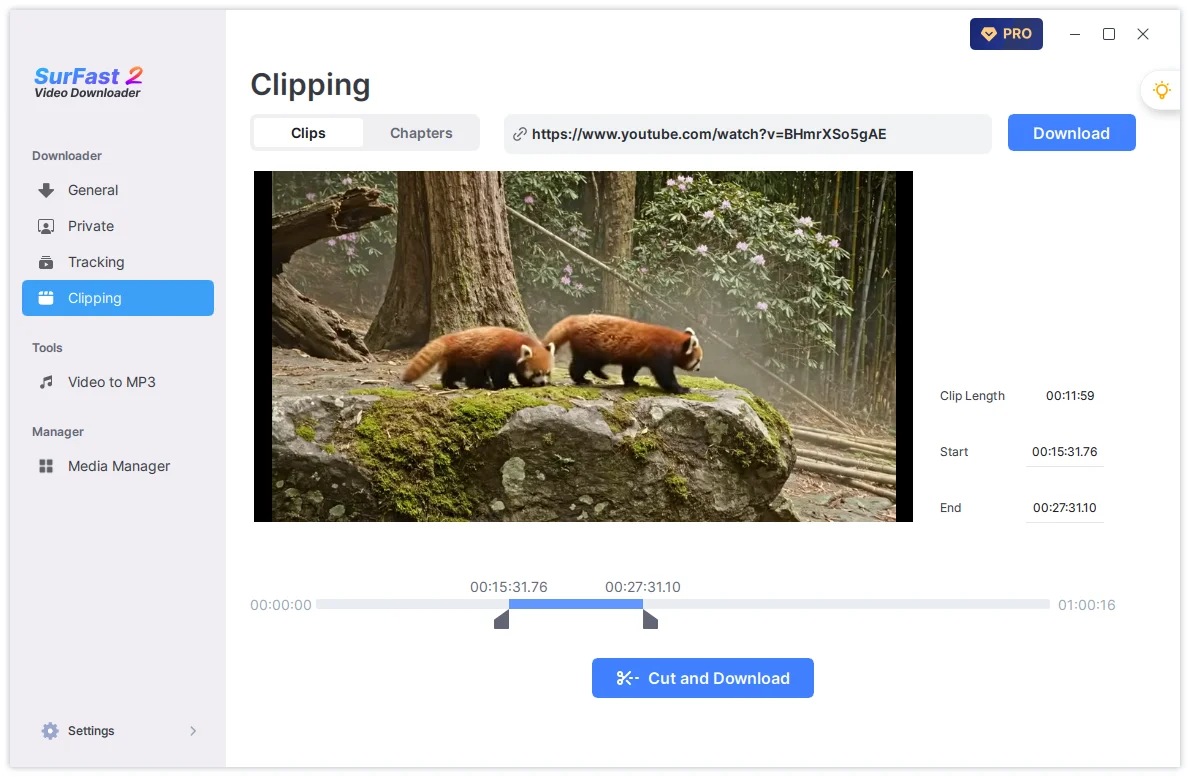
On a YouTube video with chapters, open the Chapters tab and click Download Chapters to save each chapter as its own file.
Download Videos with Global Settings
Global Settings skip the options window. Set them once, then paste a link and the download starts on its own. This helps with single videos and with large playlists.
- Click the lightbulb icon.
- Select Video.
- Choose the format and resolution.
- Turn on Always use the above settings.
- Paste a video, playlist, or channel link.
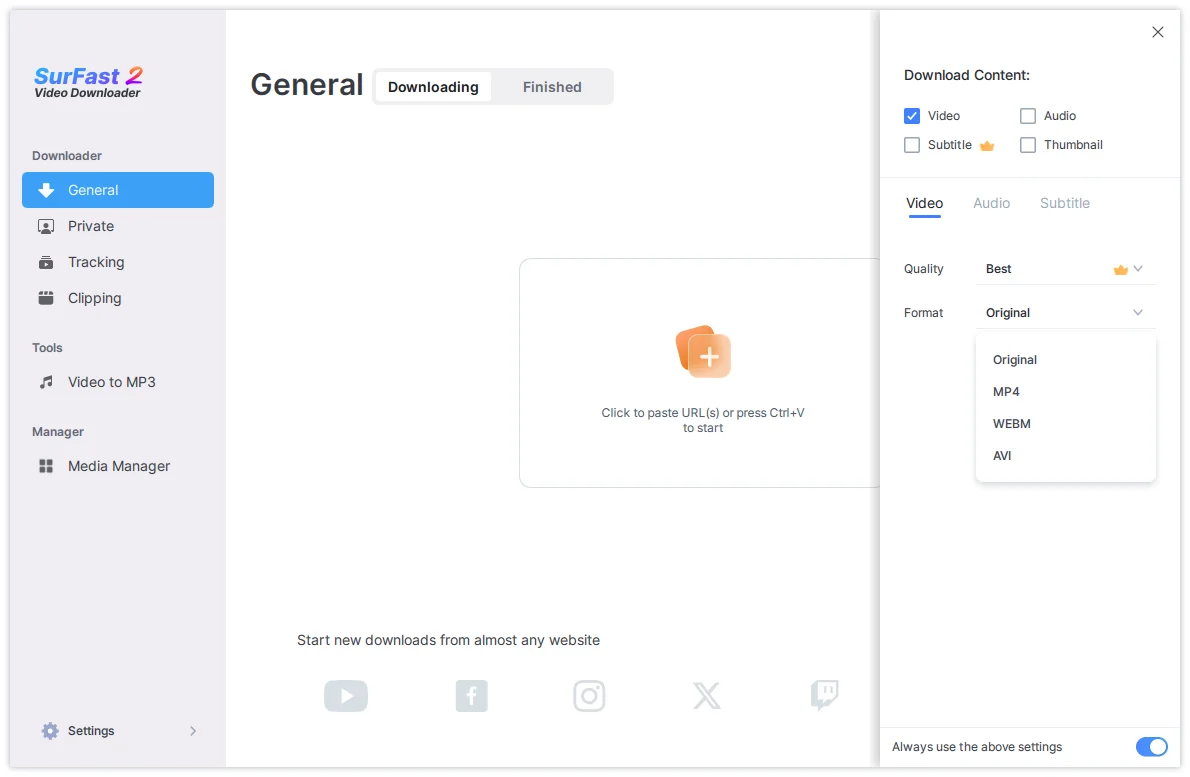
SurFast starts downloading with those settings. You can turn the option off whenever you want to choose settings for one download.
Download Live Streams
You can download a live stream the same way as a regular video.
- Copy the YouTube live stream URL, open SurFast Video Downloader, and paste the link.
- Wait for the app to parse it.
- Choose the format and resolution, then click Download.
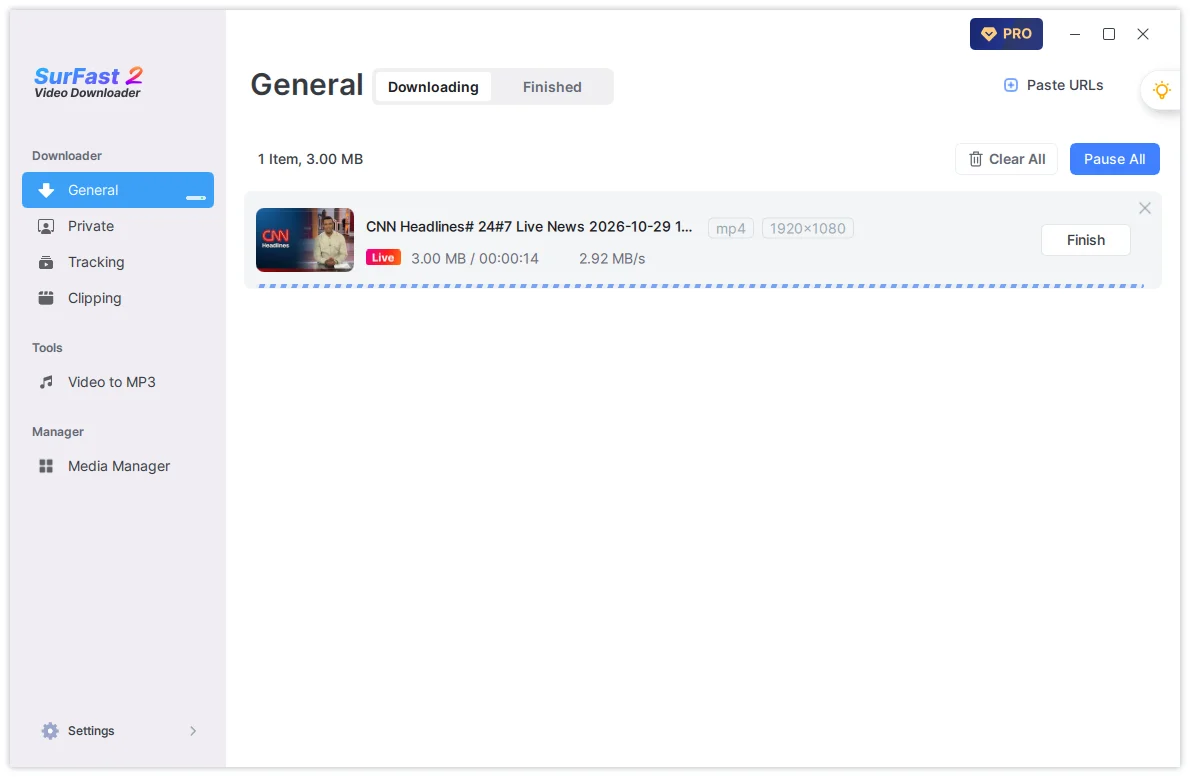
By default, SurFast downloads the whole live stream. If you do not need the full video, stop the download at any time. The app saves the portion that has already been downloaded.
To start automatically when an upcoming stream goes live, use Tracking. See How to Automatically Download New Videos from Channels or Playlists.
Summary
| Way to download | Use it when | Works for |
|---|---|---|
| General panel | The video is public | Single videos, playlists, channels |
| Private panel | You must sign in first | Videos your account can already view |
| Clipping | You only need part of the video | A selected segment, or YouTube chapters |
| Global Settings | You want the same format and quality every time | Single videos, playlists, channels |