
How to Download Part of a Video or Audio with SurFast Video Downloader
SurFast Video Downloader allows you to download only the portion of a video or audio file you need, instead of saving the entire content. This is useful when you want a specific segment, highlight, or chapter. This guide explains how to use the Clipping feature step by step.
For a complete overview of all features, see the SurFast Video Downloader Official Guide.
Table of contents
Download a selected portion of a video or audio
To boost efficiency, you can download entire playlists in one go, or trim clips before you download video or extract audio. Just a heads-up: trimming doesn’t apply when you download subtitles.
- Open SurFast Video Downloader and go to the Clipping panel.
- Paste the video or audio link into the app and click Download.
- Use the timeline bar or manually enter the start time and end time to select the part you want.
- Click Cut and Download.
- Choose your preferred format, resolution (or audio quality), and output folder.
- Click Download to start.
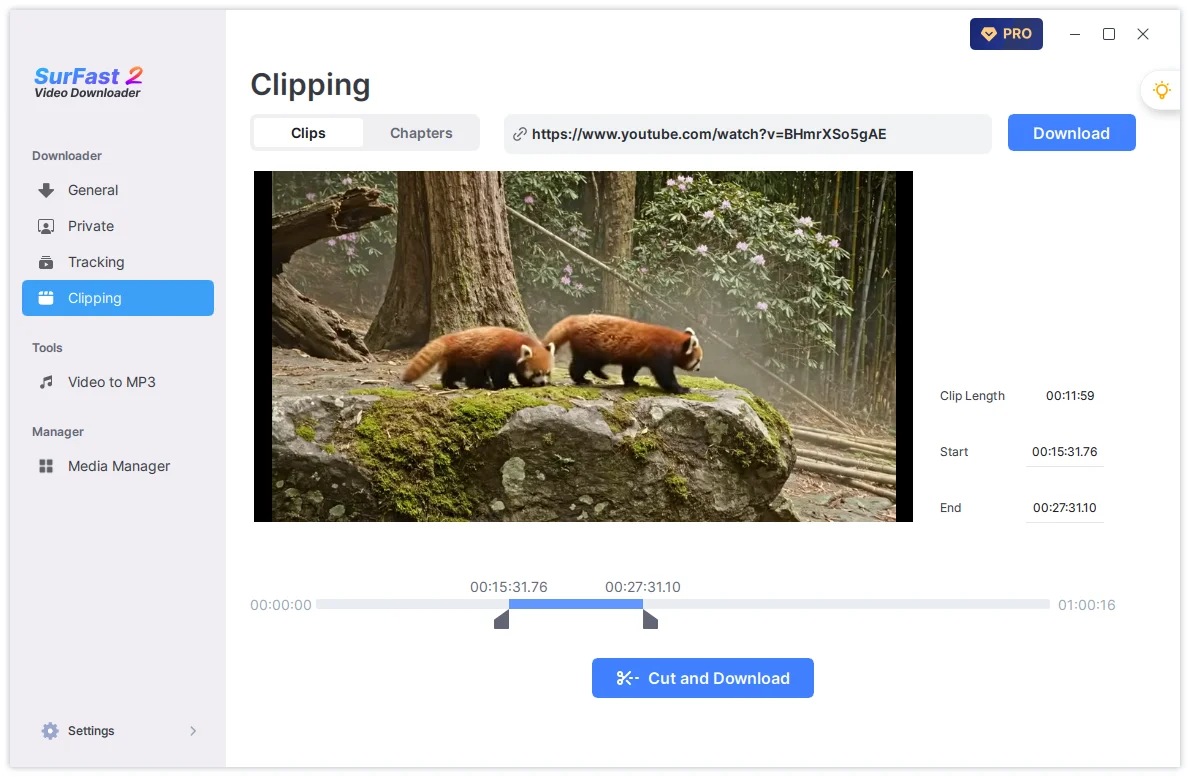
The app will process only the selected segment and save it as a separate file. There is no duration limit on the portion you can clip. You can also use this feature to download private video.
Download YouTube chapters as separate files
If a YouTube video contains chapters, you can download each chapter as an individual file.
- Paste the YouTube video link into the Clipping panel and click Download.
- Switch to the Chapters tab.
- Click Download Chapters.
- Select the format, resolution, and output folder.
- Click Download.
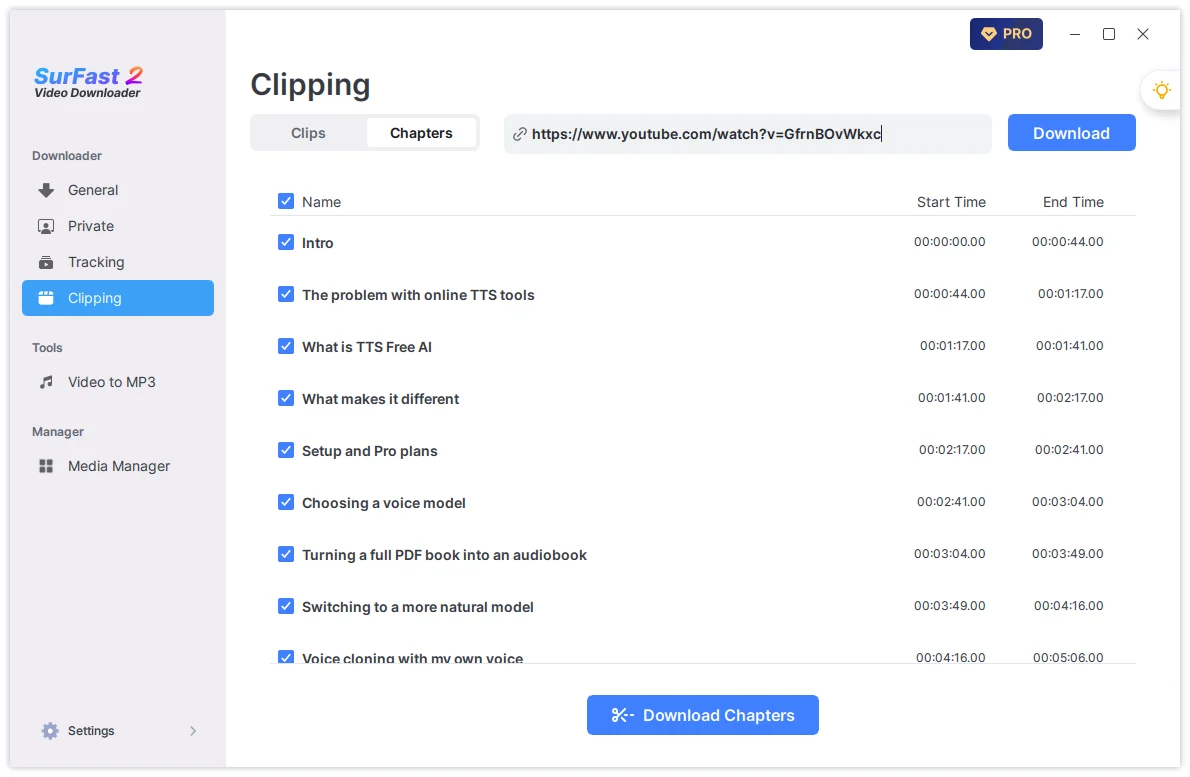
Each chapter will be saved as a separate video file.
Tips for better clipping results
- You can clip both video and audio files using the same feature.
- For more accurate selection, enter the exact start and end times instead of only dragging the timeline.
- If you frequently use the same output settings, configure them in Global Settings (lightbulb icon) and enable “Always use the above settings” to speed up the process.
- After clipping, the finished file will appear in the Finished tab.
Summary
| Task | Where to Go | Key Action |
|---|---|---|
| Download a selected part | Clipping panel | Set start & end time → Cut and Download |
| Download YouTube chapters | Clipping → Chapters | Click Download Chapters |
| Speed up repeated clipping | Global Settings | Preset format and quality |
With the Clipping feature, you can quickly save only the parts you need without downloading full videos.