
Let AI summerize this article for you:
 ChatGPT
 Claude
 Gemini
 Grok
Grok Perplexity
Updated on
Key Takeaways
Finding the right YouTube to MP3 converter for Mac isn’t just about grabbing any random tool—it’s about balancing quality, speed, and safety. With over 2 billion logged-in users visiting YouTube monthly, the demand for offline audio content continues to surge. Mac users face unique considerations: not all converters play nice with macOS security protocols, and many Windows-focused tools either don’t work or strip away critical features.
The best converters deliver 320kbps audio quality without malware baggage, support batch downloads to save time, and actually work on the latest macOS versions. Some excel at simple one-off conversions, while others shine for building entire music libraries. Browser-based options offer convenience but sacrifice features, while dedicated desktop applications provide power users with advanced controls like metadata editing and playlist management. This guide cuts through the noise to highlight ten proven tools that Mac users can trust in 2026.
The Need for YouTube to MP3 Converters on Mac
Mac users face a unique challenge when it comes to extracting audio from YouTube videos. While YouTube hosts over 800 million music videos, the platform doesn’t offer a built-in download feature—especially not for audio-only files. This is where dedicated converters become essential.
The demand for the best YouTube to MP3 tools on Mac isn’t just about convenience. It’s about preserving music, podcasts, and educational content for offline listening—whether you’re commuting through subway tunnels, working in areas with spotty Wi-Fi, or simply avoiding data overages. Mac’s native ecosystem, with its emphasis on iTunes and Apple Music, doesn’t always play nicely with third-party downloads, making the right converter crucial.
Here’s what drives Mac users to these tools:
- Offline accessibility for podcasts, lectures, and workout playlists
- Data conservation when streaming isn’t practical
- Content archiving for reference materials or hard-to-find tracks
- Quality control to ensure audio fidelity matches the source
The challenge? Not all converters respect copyright laws or device security. Some bundle malware, while others deliver compressed audio that sounds like it’s playing through a tin can. Finding a solution that balances speed, safety, and sound quality requires knowing what separates legitimate tools from digital snake oil.
1. SurFast Video Downloader: The Comprehensive Solution
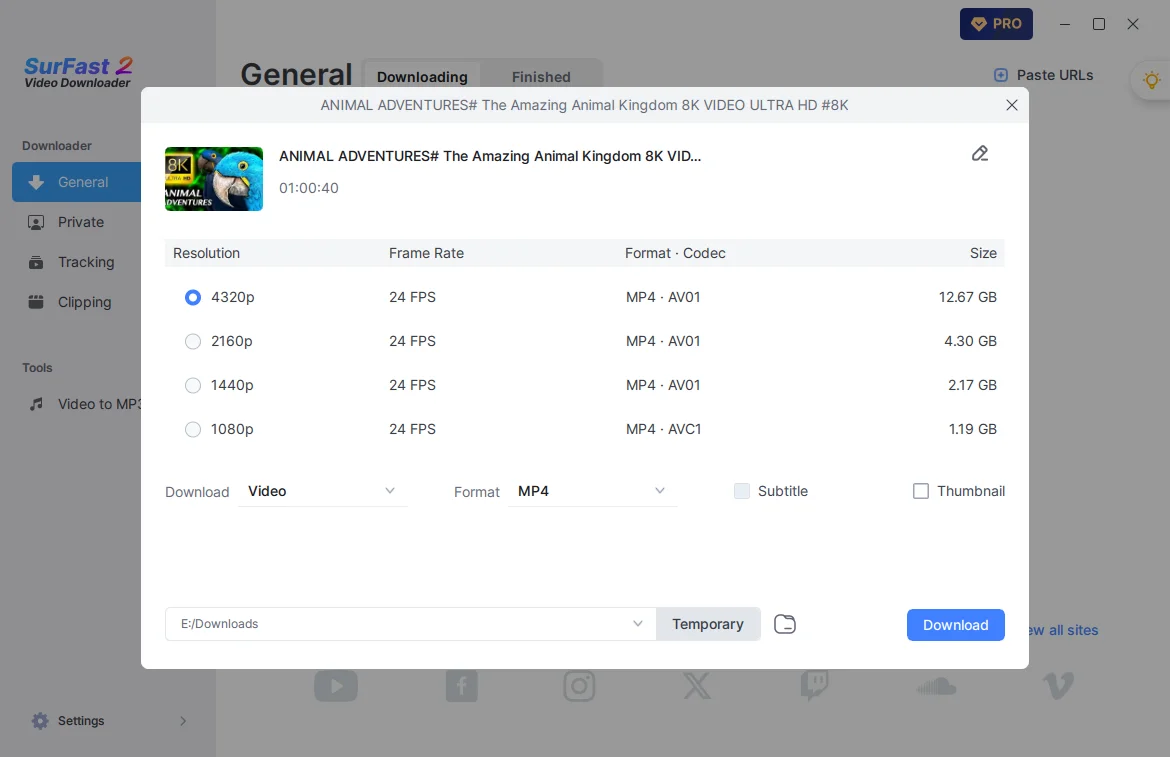
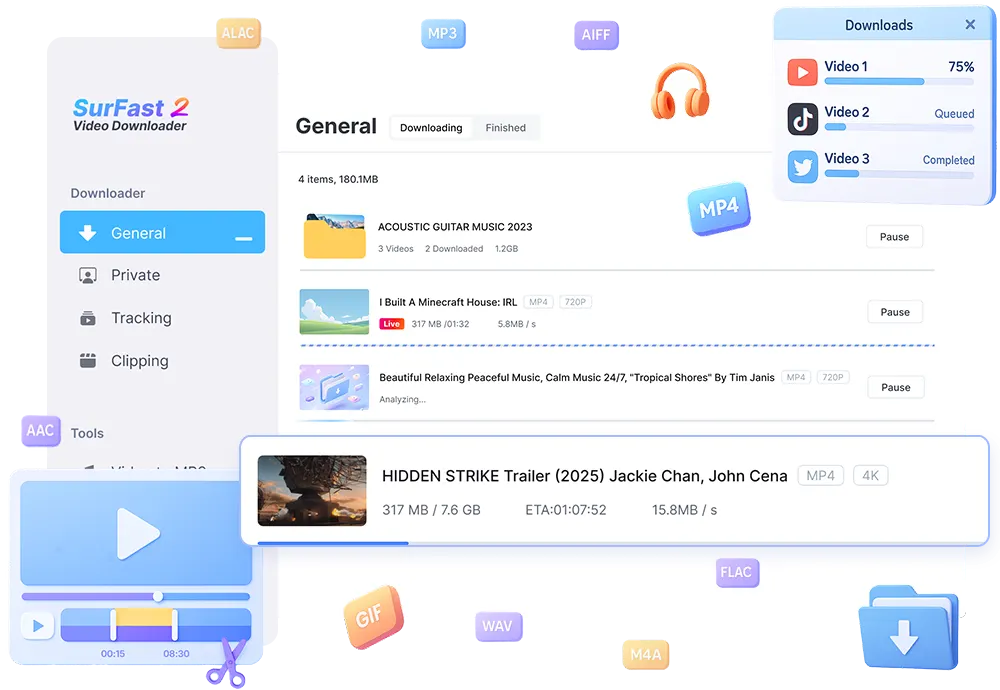
SurFast Video Downloader stands out as a powerhouse option for Mac users who need more than just basic conversion. This desktop application handles batch downloads with remarkable efficiency—you can queue up to 100 videos simultaneously, perfect for building extensive music libraries without babysitting the process.
The free version offers everything casual users need: 320kbps high-quality MP3 extraction, playlist support, and speeds that consistently outpace browser-based converters. According to TechRadar’s testing, SurFast delivered conversions roughly 3x faster than typical free YouTube to MP3 web tools—a game-changer when you’re working with longer content.
What makes SurFast particularly versatile is its format flexibility. Beyond MP3, it supports M4A, WAV, and even preserves video in formats like MP4 and WebM. The interface prioritizes speed over aesthetics, with straightforward paste-and-convert functionality that gets out of your way.
The catch? The free tier limits you to a handful of downloads daily, though that’s typically sufficient for personal use. Power users will appreciate the Pro version’s unlimited conversions and subtitle extraction, but the basic package handles most everyday needs without opening your wallet.
2. 4K YouTube to MP3: High-Speed and Versatile
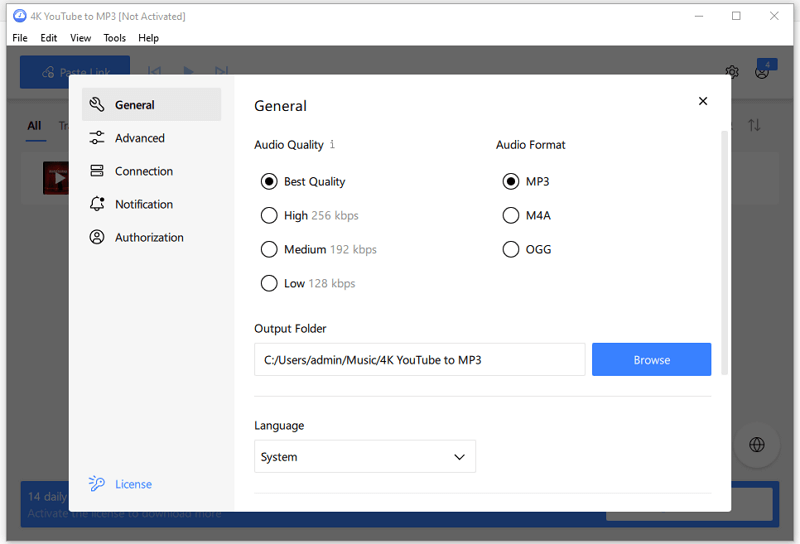
4K YouTube to MP3 earns its spot as a top Mac YouTube downloader through a combination of exceptional speed and reliability. This desktop application delivers what its name promises: high-quality audio extraction that handles even 4K video sources with ease.
The software’s standout feature is its Smart Mode, which remembers your preferred settings and applies them automatically to all subsequent downloads. Set your preferred format, quality level, and output folder once, and the tool handles everything else. This proves particularly valuable when processing multiple videos or building playlists.
Mac users appreciate the application’s clean interface that requires minimal learning curve. Simply paste a YouTube URL, and the conversion begins immediately. The software supports up to 320kbps audio quality, preserving the original sound fidelity from YouTube videos.
What sets 4K YouTube to MP3 apart is its multi-threaded download technology, which dramatically accelerates conversion speeds compared to browser-based alternatives. The application also handles playlist downloads efficiently, automatically extracting audio from entire YouTube playlists with a single click. However, the free version limits users to 30 downloads per day, making other conversion methods worth exploring for power users.
3. MediaHuman YouTube to MP3 Converter: User-Friendly Interface
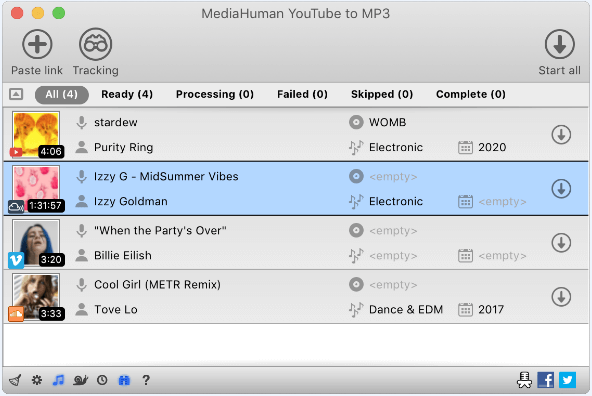
MediaHuman YouTube to MP3 Converter has earned its reputation as one of the most accessible options for Mac users who prioritize simplicity without sacrificing quality. The software’s clean, intuitive layout makes it particularly appealing for those who want straightforward conversions without navigating complex settings.
What sets MediaHuman apart is its drag-and-drop functionality—simply paste a YouTube URL, and the converter handles the rest. The application supports batch downloads, allowing you to queue multiple videos simultaneously, which proves invaluable when converting entire playlists to audio format. According to MacPaw’s review, MediaHuman stands out for its reliability and consistent performance across different macOS versions.
The converter delivers high-quality MP3 files with customizable bitrate settings up to 320kbps, ensuring your audio maintains its original fidelity. However, the free version includes ads and lacks some advanced features found in competing tools. One notable limitation: it doesn’t support as many platforms as more comprehensive solutions, focusing primarily on YouTube and SoundCloud. For Mac users who value a clean interface over extensive platform support, MediaHuman strikes an effective balance between usability and functionality.
4. Airy: Minimalist Design with Powerful Features
Airy proves that simplicity doesn’t mean sacrificing functionality. This Mac-native application strips away unnecessary complexity while delivering robust conversion capabilities that rival more cluttered alternatives. The clean interface presents only essential controls, making it immediately approachable for users who prioritize efficiency over endless menu options.
What sets Airy apart is its intelligent playlist download feature that handles batch conversions with remarkable precision. Rather than processing videos sequentially, the application queues multiple downloads simultaneously, significantly reducing overall conversion time for lengthy playlists. According to MacPaw’s review, this approach makes Airy particularly effective for users maintaining extensive music libraries.
The application maintains audio fidelity through configurable bitrate settings, allowing users to balance file size against quality. A practical approach is selecting 320kbps for archival purposes and 192kbps for everyday listening, optimizing storage without sacrificing noticeable sound quality. One standout feature: Airy automatically embeds metadata when available, eliminating the tedious manual tagging process that plagues many basic converters.
However, Airy operates on a freemium model—unlimited conversions require a paid license. The free version restricts users to 15 downloads per month, which may frustrate heavy users but proves adequate for occasional conversions.
5. ClipGrab: Free and Effective
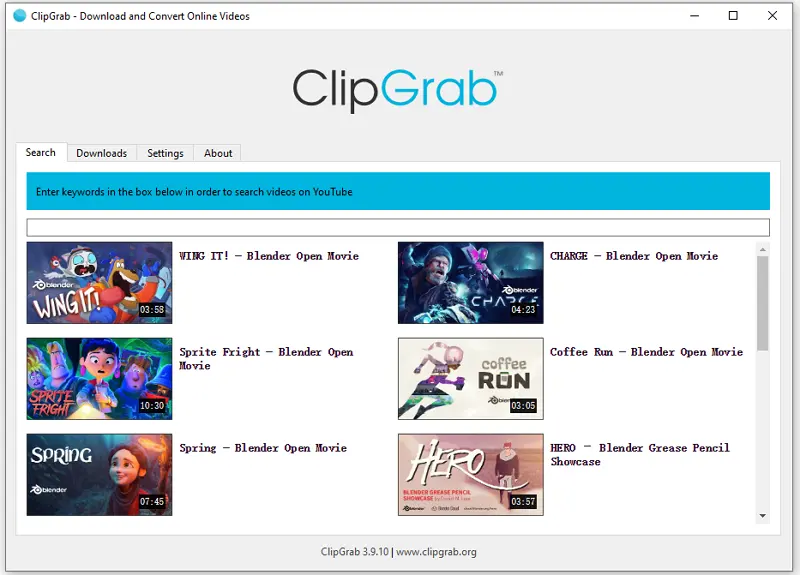
ClipGrab stands out as a genuinely free option that doesn’t compromise on core functionality. This open-source application has built a loyal following among Mac users who appreciate straightforward tools without subscription fees or feature paywalls.
The interface prioritizes simplicity—paste your YouTube URL, select MP3 as the output format, and choose your quality preference. ClipGrab supports multiple quality levels up to 320kbps, making it competitive with paid alternatives for those seeking the best YouTube to MP3 converter for Mac without opening their wallet.
What makes ClipGrab particularly practical is its built-in search functionality. Instead of switching between your browser and the converter, you can search for videos directly within the application. This streamlined approach saves time when converting multiple tracks from playlists or channels.
However, ClipGrab’s free model has trade-offs. Conversion speeds lag behind commercial options, particularly for longer audio files. The application also lacks batch processing capabilities, requiring you to convert files one at a time. For occasional use or budget-conscious users, these limitations rarely outweigh the zero-cost benefit. Power users managing extensive libraries might find the workflow inefficient compared to tools designed for batch conversions.
6. Wondershare UniConverter: Professional-Grade Tool
Wondershare UniConverter targets professionals and power users who need a comprehensive media solution rather than just a simple converter. This premium application handles far more than YouTube downloads—it’s a complete video toolkit that happens to excel at extracting audio.
The conversion process demonstrates how to convert YouTube to MP3 on Mac with professional-grade results. UniConverter supports batch processing of up to 1,000 URLs simultaneously, making it ideal for users building large music libraries or podcast collections. The software maintains audio fidelity through multiple codec options, including lossless formats for audiophiles.
What sets UniConverter apart is its integrated editor. After extraction, you can trim silence, normalize volume levels, and add metadata—all within the same interface. The versatile downloader capabilities extend beyond YouTube to over 10,000 websites, according to Wondershare’s specifications.
However, this power comes at a price. The subscription model starts around $39.99 annually, positioning it as a professional investment rather than casual tool. Users who only need basic YouTube-to-MP3 functionality might find themselves paying for features they’ll never explore. The software’s extensive capabilities also mean a steeper learning curve compared to minimalist alternatives.
7. YTD Video Downloader: Reliable and Consistent
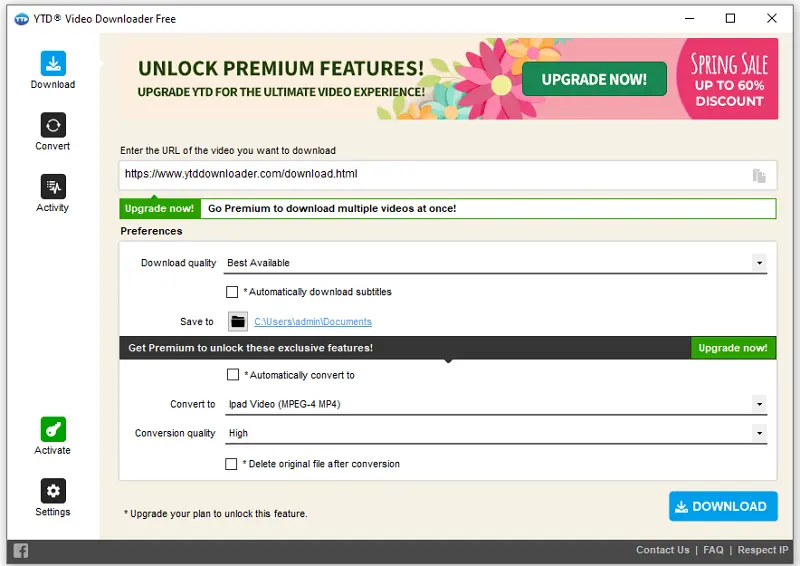
YTD Video Downloader has earned its reputation through years of consistent performance and straightforward functionality. This veteran application focuses on doing the essentials exceptionally well rather than overwhelming users with features they’ll rarely use.
The interface follows a clean, logical layout that makes the conversion process obvious even for first-time users. Paste your YouTube URL, select MP3 as your output format, and let the software handle the rest. What sets YTD apart is its stability across macOS updates—the application consistently maintains compatibility when Apple releases new system versions, something that plagues many alternatives.
According to TechRadar’s testing, YTD delivers reliable conversion speeds without the bloat that slows down competing applications. The batch download feature proves particularly useful when building playlists, allowing you to queue multiple conversions and walk away while it processes everything.
One limitation worth noting: the free version includes occasional advertisements and limits conversion quality to 128 kbps. The premium upgrade removes these restrictions and unlocks 320 kbps output, making it competitive with professional-grade options. For users who prioritize dependability over cutting-edge features, YTD represents a sensible middle ground between basic online converters and complex professional suites.
8. Cobalt.Tools: Browser-Based Convenience
Cobalt.Tools eliminates the installation barrier entirely by operating as a web-based converter accessible from any Mac browser. This minimalist approach appeals to users who prefer not to clutter their systems with additional software or need occasional conversions without commitment.
The service stands out for its straightforward interface—paste a YouTube URL, select MP3 as the output format, and download. What makes Cobalt particularly valuable is its cross-platform compatibility without requiring platform-specific builds. Whether you’re on Safari, Chrome, or Firefox, the experience remains consistent and reliable.
Privacy-conscious users appreciate that Cobalt processes conversions server-side without tracking or storing user data beyond temporary processing. The service supports multiple quality levels, allowing you to balance file size against audio fidelity based on your needs.
However, browser-based tools depend entirely on internet connectivity and server availability. During peak usage times, conversion speeds may vary, and any service interruption means no access to functionality. For users who need guaranteed availability or work in environments with restricted internet access, a dedicated video downloader might prove more reliable. Still, for quick, no-installation conversions, Cobalt.Tools delivers exactly what occasional users need.
9. Any Video Converter: Versatile and Feature-Rich
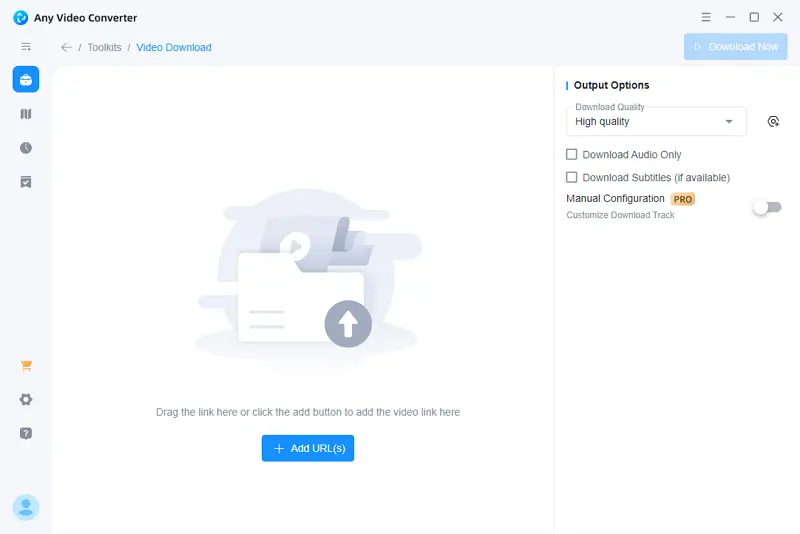
Any Video Converter distinguishes itself through comprehensive format support that extends far beyond simple MP3 conversion. This desktop application handles video-to-audio extraction alongside dozens of video format conversions, making it valuable for users managing diverse media libraries.
The software supports batch processing with customizable audio quality settings up to 320kbps, though conversion speeds vary depending on file size and selected output quality. What sets it apart is the built-in media player and basic editing tools—trim audio clips, adjust volume levels, or merge multiple files without switching applications.
However, the free version displays occasional advertisements and limits simultaneous conversions. The interface also carries more complexity than specialized converters, which can feel overwhelming for straightforward MP3-only tasks. For users who frequently work with multiple media formats or need integrated editing capabilities, Any Video Converter offers solid value. But those seeking a streamlined YouTube-to-MP3 workflow might find simpler alternatives more efficient.
The learning curve is moderate—power users appreciate the extensive options, while casual converters may prefer more straightforward tools covered earlier in this guide.
10. QuickTime/VLC: Built-In Mac Solutions
Mac users already possess powerful conversion tools without downloading additional software. QuickTime Player and VLC Media Player (typically pre-installed or easily accessible) handle audio extraction through their built-in capabilities, though the process requires more manual steps than dedicated converters.
QuickTime primarily functions as a screen recorder—users can capture YouTube playback directly, then extract audio using macOS’s built-in audio editing tools. However, this method captures system audio quality rather than source file quality, limiting output to what your speakers produce during recording.
VLC Media Player offers more sophisticated conversion through its Media menu. According to AudiCable’s converter comparison, VLC converts virtually any video format to MP3, making it valuable for offline files you’ve already downloaded. The trade-off? VLC lacks integrated YouTube downloading—you’ll need to obtain video files separately before converting them.
These native solutions excel at zero-cost conversion with complete privacy (everything happens locally), but the multi-step workflow feels cumbersome compared to all-in-one converters that handle both downloading and conversion seamlessly.
Comparison of these YouTube downloaders
Choosing between these converters depends on your specific priorities—whether that’s speed, audio quality, ease of use, or batch processing capabilities. Online tools like MediaHuman and YTMP3 excel at quick, single-file conversions without software installation, while desktop applications such as 4K YouTube to MP3 and Any Video Converter offer advanced features like playlist downloads and format customization.
According to comparative testing, desktop applications consistently deliver higher audio quality—up to 320kbps—compared to many browser-based solutions that cap at 192kbps. However, online converters win on convenience, requiring no disk space or updates. Built-in solutions like QuickTime and VLC represent the middle ground: adequate quality with zero additional software needed.
Batch processing separates casual users from power users. Tools like 4K YouTube to MP3 and MediaHuman handle entire playlists automatically, while most online converters process files one at a time. If you’re building a music library, this distinction becomes crucial—what takes minutes with dedicated software could consume hours with single-file tools.
Understanding these trade-offs helps you select the right converter for your workflow. The next consideration? Evaluating the trustworthiness and limitations inherent to any conversion tool.
Trust and Limitations: Considerations When Choosing a Converter
Before committing to any YouTube to MP3 converter, understanding the inherent limitations and trust factors helps you make informed decisions that protect both your Mac and your content library.
Quality isn’t always what’s advertised. Many converters claim “high-quality” output, but the actual bitrate often depends on the source video’s audio track—typically 128kbps or 160kbps for standard YouTube videos. According to TechRadar’s converter testing, even tools advertising 320kbps output can’t genuinely enhance audio beyond YouTube’s original compression. What you’re getting is an upscaled file, not improved quality.
Privacy considerations matter significantly. Online converters process your requests through third-party servers, creating a digital trail of what you’re downloading. Desktop applications keep conversions local, offering better privacy but requiring you to trust the software developer with system access. Check privacy policies before entering email addresses or allowing notifications—data collection practices vary dramatically between tools.
Legal limitations remain regardless of tool quality. Converting copyrighted content without permission violates YouTube’s Terms of Service and potentially copyright law, even if the converter itself is legitimate. Stick to Creative Commons content, royalty-free music, or videos you have explicit permission to download.
Finally, no converter works permanently. YouTube regularly updates its platform structure, which can temporarily break even well-maintained tools. The most reliable converters receive frequent updates—a sign of active development and long-term viability.
Wrapping Up
Finding the right YouTube to MP3 converter for your Mac ultimately comes down to balancing your priorities—whether that’s pristine 320kbps audio quality, lightning-fast batch processing, or simple one-click convenience. Each tool we’ve covered excels in different scenarios, from professional audio archiving to casual playlist building.
The landscape continues to evolve, with browser-based options becoming increasingly sophisticated while desktop applications push the boundaries of batch processing capabilities. What typically happens is users start with a free online converter, then graduate to desktop software as their needs grow more complex.
Before committing to any solution, consider the trust and limitation factors we outlined—especially regarding copyright compliance and source reliability. A converter that delivers 320kbps quality means nothing if it compromises your system security or violates content rights.
One practical approach is to bookmark two or three converters from our list: a reliable online option for quick conversions, and a desktop application for your larger projects. This combination ensures you’re covered whether you need immediate access or batch processing power.
The best converter isn’t necessarily the one with the most features—it’s the one that consistently delivers the audio quality and workflow efficiency you need, without unnecessary complications or security concerns.


You May Also Like
-
Top 20 Hurawatch Alternatives for Free Streaming | New Update
Check the 20 free sites like Hurawatch and enjoy smooth movie streaming on the Hurawatch alternatives you like.
Myra Xian Updated on -
Top 8 JDownloader Alternative Tools for Video Downloads
Looking for a simpler way to download videos from websites? These 8 free JDownloader alternatives get the job done—stable, reliable, and free from hidden risks.
Myra Xian Updated on -
Top 6 HDToday Alternatives Your Should Know
HDToday is one of the free movie platforms where you can find more than 10,000 movies to watch for free. By using it, you can watch your favorite movies at no cost, without signing in or installing software. However, the site is famous for the overloaded ads, which bring users a terrible user experience. If …
Charlene Chen Updated on