
How to Convert Local Videos to MP3 with SurFast Video Downloader
SurFast Video Downloader is built for downloading online videos and audio. It also includes a Video to MP3 tool that converts video files already stored on your Windows PC or Mac into MP3.
This tool only handles local files. The output format is MP3. It does not download a link from the internet. To save audio from an online video, see How to Download Audio with SurFast Video Downloader.
For complete usage instructions, see the SurFast Video Downloader Official Guide.
Table of contents
Supported Video Formats
You can import common local video files, including MP4, M4V, MKV, AVI, WMV, MOV, FLV, F4V, and WebM. SurFast Video Downloader reads the soundtrack from these files and saves it as MP3. You can convert one video or several videos in the same batch.
Convert Local Videos to MP3
- Open SurFast Video Downloader and go to the Video to MP3 panel.
- Drag the video files into the window, or click the center area or Add Files to import them.
- Click the Settings icon if you want to change the bitrate, sample rate, or volume.
- Choose the output folder and click Save.
- Click Convert.
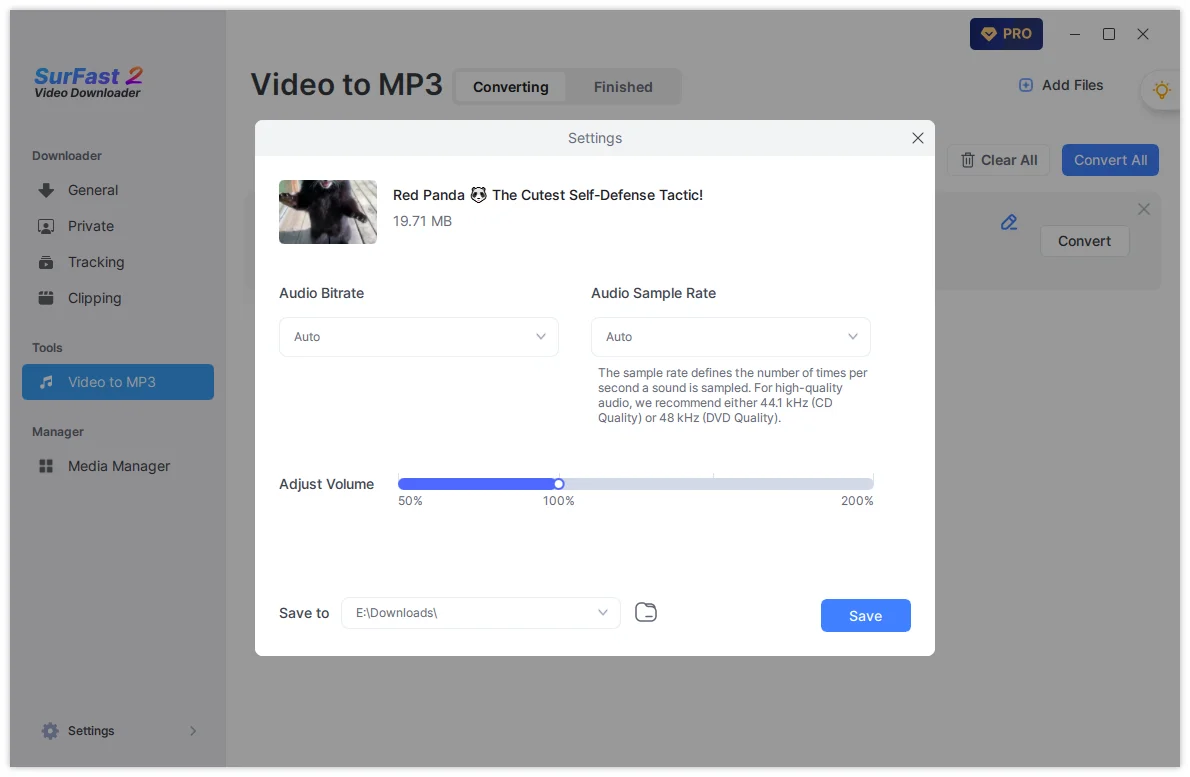
Each video becomes its own MP3 file. You can convert a single file or multiple files at the same time.
Tips
- Video to MP3 does not change the picture or save a new video. It only extracts the audio as MP3.
- If a file has no audio track, there is nothing to convert.
- Use a higher bitrate when you want clearer sound, and a lower bitrate when you want a smaller file.
- Online videos should not be imported here. Paste those links in General, Private, or Global Settings and choose an audio format there.
Summary
| Item | Video to MP3 |
|---|---|
| What it converts | Video files already on your computer |
| Output | MP3 only |
| How many files | One video or a batch |
| Settings | Bitrate, sample rate, and volume |
| Not for | Downloading audio from a website link |