

Fast Zoom Video Downloader – Save Zoom Recordings in High Quality
SurFast Video Downloader is a powerful and versatile tool that lets you download videos from over 1,000 websites, including YouTube, Vimeo, Facebook, and more, as well as Zoom cloud recordings and local meeting files. Whether you need to save a webinar, an online class, or a team meeting, SurFast enables you to download Zoom recordings in your preferred format, such as MP4, MOV, or AVI, and in your desired quality, up to 4K, all with just one click.
Fast & Secure Zoom Downloader for PC and Mac
SurFast Video Downloader brings fast, secure, and ad-free Zoom video downloads straight to your desktop. No redirects. No hidden steps. Just clean, reliable performance on both PC and Mac.
Download Zoom Recordings in Bulk
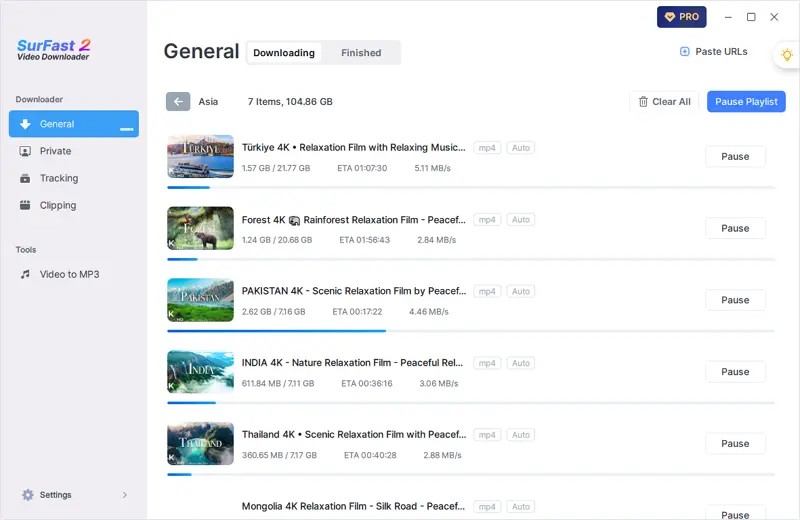
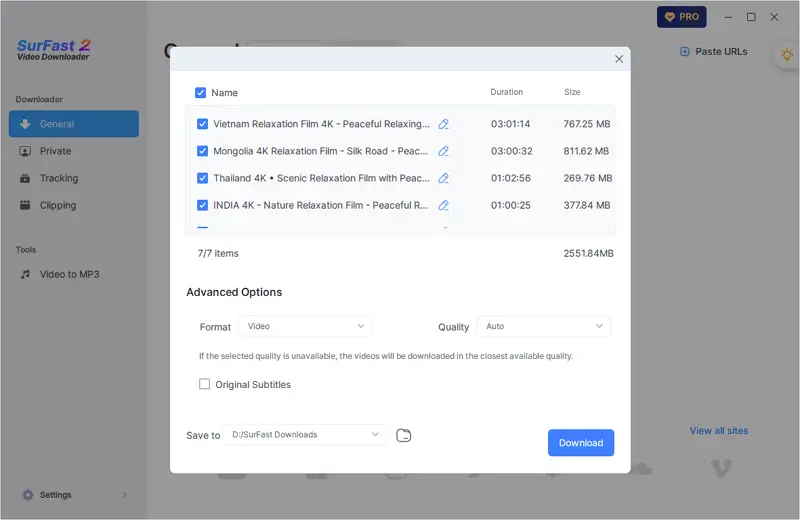
Paste up to 50 video URLs at once, or drop an entire playlist link. SurFast Video Downloader handles them all in a single go, so you can grab every recording you need without repeating the same steps over and over.
Download Zoom Videos in the Highest Available Quality
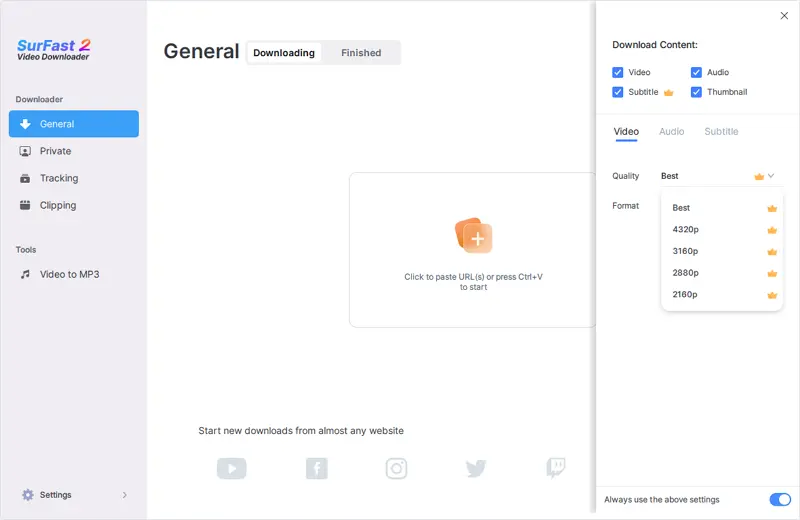
SurFast Video Downloader supports every resolution from 144p all the way up to 8K. As long as the original Zoom recording is available in HD, Full HD, 4K, or higher, you can download it in its full native quality with no downgrades and no compromises.
Convert Zoom Videos to MP4 and More
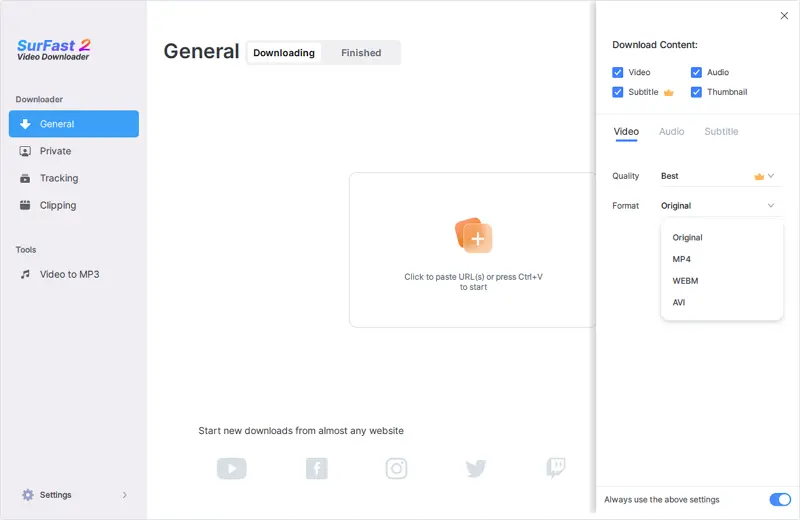
SurFast Video Downloader lets you save Zoom videos in a wide range of formats, including MP4, WebM, MOV, MKV, FLV, and AVI, so you can pick the one that works best for your device or editing software.
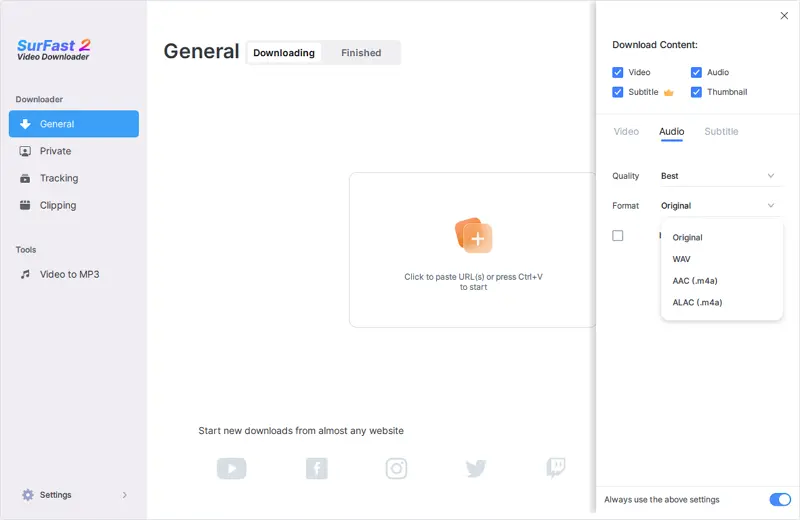
Extract Audio from Zoom Recordings
Need only the audio? SurFast Video Downloader can directly download and convert Zoom videos into audio files. You can choose your preferred output format, including MP3, WAV, M4A, FLAC, OGG, and more. There is no need to download the full video first. Just get the audio you need in one step.
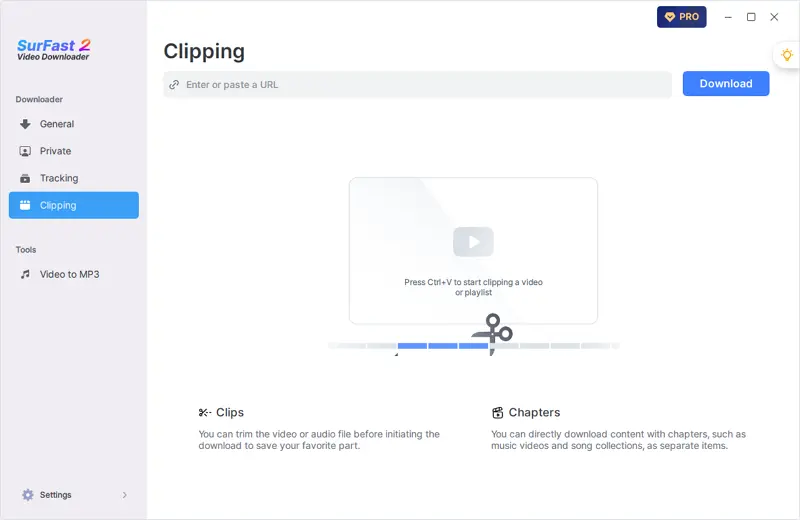
Download Just the Clip You Need
With the clipping feature in SurFast Video Downloader, you can select and download only a specific section of a Zoom recording. There is no need to save the entire file, so you save both time and storage space on your device.
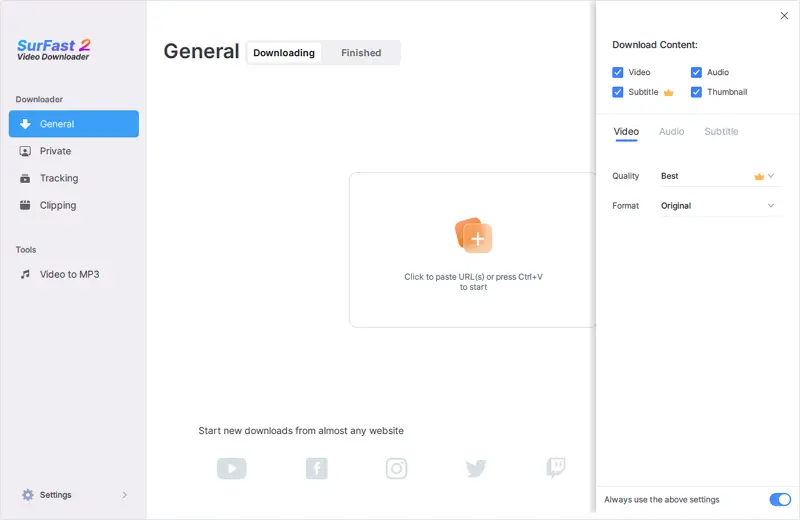
More Than Just Video Downloads
SurFast Video Downloader is a full-featured media downloader that handles videos, audio, subtitles, and thumbnails—all from your favorite websites. If you need a reliable tool to grab all kinds of online media, it is a smart choice.
Beyond Zoom
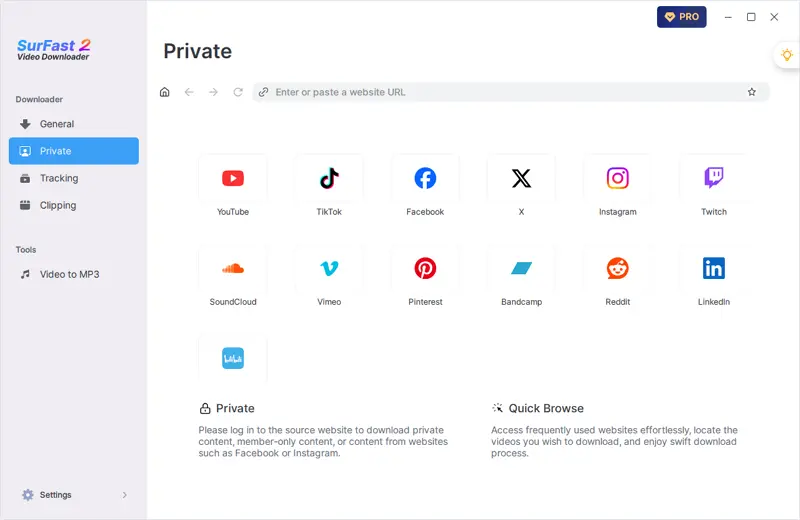
SurFast Video Downloader works with more than just Zoom. It also supports major platforms like YouTube, TikTok, Facebook, X, and even cloud services such as Google Drive. Whether it’s a social clip, a tutorial, or a shared recording, chances are you can download it with SurFast Video Downloader.
How to Download Zoom Recordings
You can download Zoom recordings by following the steps below:
- Copy the Zoom video URL you need.
- Paste the URL into SurFast Video Downloader and wait for the app to parse the URL.
- Set the output video format, quality, and storage path, then click Download.
- Check the video in the Finished panel.
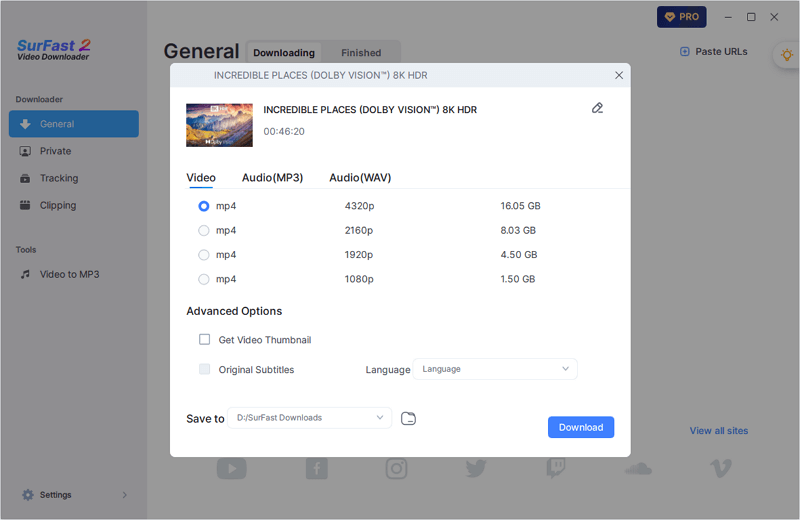
Enjoy Fast and Smooth Video Downloads Right from Your Desktop
Download and install SurFast Video Downloader on your PC or Mac today. Start downloading videos instantly with a clean, reliable, and ad-free experience that gets out of your way and delivers results.
More Video Downloaders You May Like
You might also like these tools for downloading videos from the internet.
Frequently Asked Questions
Check the FAQ section for more useful tips.
How to Download Zoom Videos as MP4?
With SurFast Video Downloader, you can save Zoom recordings in MP4 in two ways.
First, after the video is parsed, simply choose MP4 from the format options before downloading.
Second, go to Global Settings and set MP4 as your default output format. Once enabled, every Zoom link you paste will download automatically in MP4 with no extra steps. This option is ideal if you only want MP4 files.
How to Download Audio from Zoom Recordings?
You can easily extract audio from Zoom recordings in formats such as MP3, WAV, or FLAC using SurFast Video Downloader. If you don’t see an audio option after parsing, go to Global Settings (accessible via the lightbulb icon) and enable audio downloads first.
- Copy the Zoom video URL and paste it into SurFast Video Downloader. Wait for the parsing to complete.
- Choose the audio option, select your preferred format and quality, then click Download.
- Go to General > Finished to find your downloaded audio file.
How to download multiple Zoom recordings at once?
You can paste up to 50 URLs into SurFast Video Downloader at a time, so you can download multiple videos at once if you need to.